
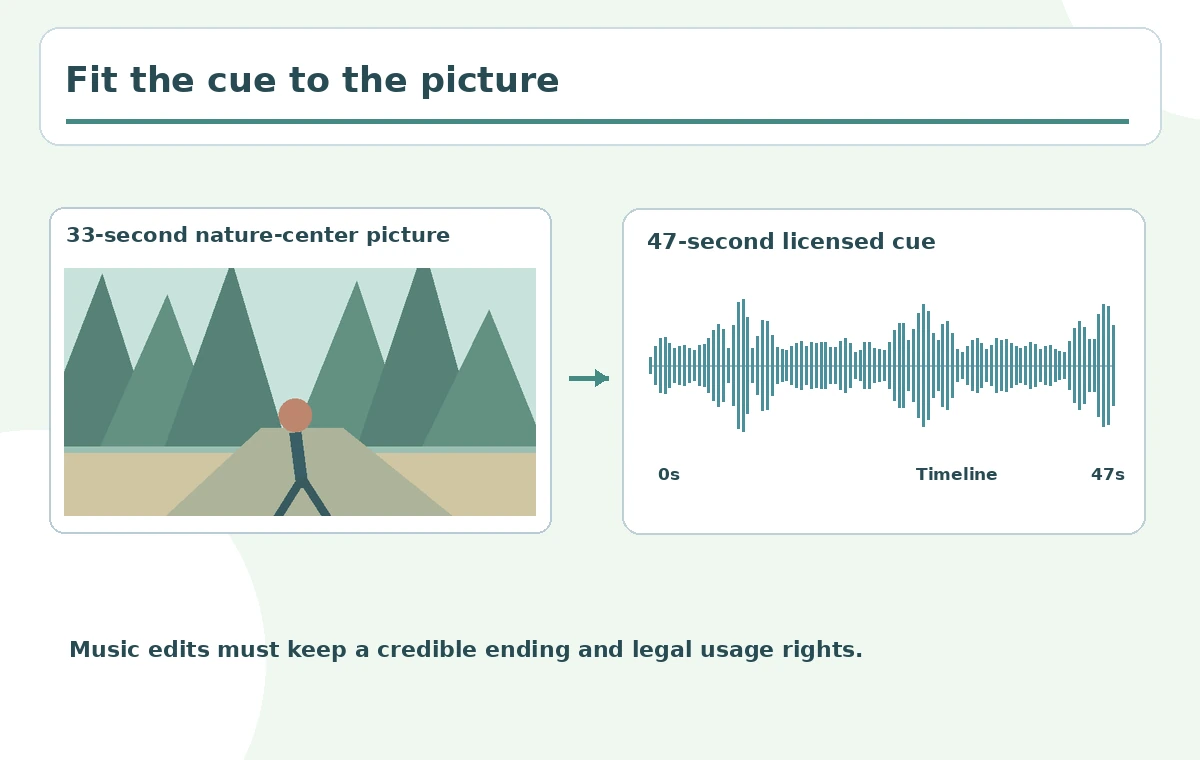
A short nature-center advertisement is 33 seconds long, but the approved instrumental cue is 47 seconds. The editor needs a musical fit, not a faster playback that changes pitch or a hard cut that loses the original ending. DaVinci Resolve AI Music Editor rearranges sections to approach a target duration. This tutorial uses a beat-driven instrumental and a source-aware approval sheet, while highlighting what the tool does not promise: it is not a score composer, a music license and a universal solution for ambient sound. The waveforms and timeline examples are original explanatory illustrations, not captures from a real Resolve project.
Lock the picture duration and confirm the music rights
Choose an approved edit length before retiming the cue. The example has a fixed 33-second picture and a 47-second instrumental track, but those figures are illustrative, not test measurements. Ask where the brand logo lands and whether the music should resolve naturally before the end card. Verify synchronization and usage rights for the actual track; software ability to edit it is not a music license. Save an untouched copy of the original composition. Write down the intended start, point of strongest energy and final note or tail. The music should support picture cues without overpowering narration or creating misleading emotion.
Confirm the feature is in Studio and suits the material
Blackmagic’s official DaVinci Resolve 20 feature guide identifies AI Music Editor as Studio-only and describes it as best for beat-driven music such as pop and dance. The guide says it is not designed for free-form ambient material, and that the operation creates musical edits rather than using time compression or altering pitch. The feature remains a relevant documented workflow, even when the installed application carries the newer Resolve 21 branding; users should verify their own menu and license version. Avoid promising that every orchestral swell or evolving ambient texture will produce a clean join.
Set target length in the Audio Inspector
Import the licensed cue to the timeline and select it. In the Audio Inspector, find AI Music Editor, enter the needed Target Length and trigger Adjust, following Blackmagic’s documented steps. This requests an intelligent arrangement near the target; it does not guarantee a mathematically exact frame on the first try. If the soundtrack needs to accompany narration, temporarily focus on the music-only mix while assessing structural edits, then restore dialogue for the final balance. Keep a record of the original 47-second cue and intended 33-second fit so another editor can understand which version is authoritative.
Listen through all four proposed edit variations
The manufacturer’s guide describes four alternative edits after analysis. Listen without watching the picture first: does the rhythm repeat unnaturally, does a drum fill suddenly reset, and does the harmony lead into a logical ending? Then play with video and compare whether the strongest beat lands near the hero shot or a scene transition. None of the variants is inherently best because it is first. Record candidate A through D with notes such as “strong ending, weak middle join” or “good build, abrupt stop.” Do not invent ratings or pretend the illustrative score diagram reflects actual model output.
Understand retiming versus stretching or pitch changes
AI Music Editor creates structural edits, repeating or removing musical sections where it finds suitable joins. Blackmagic specifically distinguishes this from changing playback speed or pitch. That distinction matters for percussion and vocals: slowing down a finished track might alter its tone, whereas repeating a beat pattern can preserve timbre but introduce detectable repetition. Visually mark the cut locations in the conceptual waveform and listen at each join while wearing headphones. If a refrain repeats too soon, try another version or hand edit it. A music bed can fit duration technically while still feeling wrong editorially.

Use Live Trim carefully and protect the ending
The first-party guide also describes Live Trim, where adjusting the length on the timeline updates the musical edit. Once the preferred arrangement is selected, return to normal trimming if needed and keep the last meaningful musical event visible. Blackmagic cautions that the tool may not land on exactly the requested time and that an awkward ending may require a manual fade-out. A subtle fade is often better than leaving a tiny piece of cut-off percussion against silence. Treat precise frame-accurate timing as a separate finishing task, especially for broadcast end cards or platform requirements.
Compare music underneath dialogue and sound effects
Once the arrangement sounds coherent by itself, restore narration and effects. Listen for beats competing with key words, bass masking speech and an ending accent landing over an important safety or access statement. The right music edit may differ when an announcer speaks. Keep a short loudness review against the platform or commissioning organization’s standards, without inventing a target number that the current project has not specified. Test a phone speaker as well as headphones, because low-frequency detail can disappear. Also make sure any sourced ambient sounds remain identifiable and are not accidentally suppressed by the music balance.

Export and document the accepted musical edit
Produce one final video and, when contractually useful, a separate licensed music edit with its source metadata. Write a small sign-off sheet containing original cue, license reference, target picture length, chosen version, detected join issues and final fade notes. Save the unmodified track and the editable Resolve project in case an end card changes. Do not label the AI-edited cue a new composition or claim exclusive ownership of the underlying music. Your acceptance test is audible: no jarring repeats, faithful musical ending, intelligible narration and a complete scene at the requested runtime.
How We Research
We used the Blackmagic Design DaVinci Resolve 20 New Features Guide (Music Editor pages 26–27 and Fairlight pages 95–96), reviewed October 28, 2026, for Studio availability, intelligent joins, target length and four versions. No licensed music was processed or compared by ear. All illustrated waveforms and duration examples are editorial teaching aids.
Frequently Asked Questions
Blackmagic identifies the feature as Studio-only in its official feature guide.
No. It rearranges musical sections instead of changing speed or pitch.
Not necessarily. The vendor says it performs best on beat-driven material.
The official guide describes four generated arrangement versions.
Try a different version, then manually adjust or apply an appropriate fade-out.