
Canva includes more than one path to AI images. The useful question is not which button produces the prettiest sample, but which path puts an approved visual into a correctly sized, editable design with fewer unnecessary generations. Dream Lab works as a dedicated image-creation space; Magic Media is available as an image-generation option inside the editor. This guide separates creation, revision, credit tracking, and the human work needed for publication. It is a documented workflow, not a claim that LabFin benchmarked paid accounts.
Choose the image task before opening a tool
Start with a brief that specifies where the image will go: a website hero, presentation slide, event poster, social graphic, or rough mood board. Record the aspect ratio, focal subject, available negative space, brand palette, and any elements that must be authentic rather than synthesized. An editorial illustration can be invented. A real product screenshot, certification mark, customer testimonial, or photo documenting an actual event must come from a verifiable source.
For example, a landscape header for a bookkeeping guide should leave an uncluttered region for a real text heading. If the generation invents text, treat it as a composition problem and cover or replace it with an ordinary editable Canva text element. An attractive full-screen preview is not enough: test the composition in the narrow crop that the article template actually uses.
What Dream Lab actually does
According to Canva’s Dream Lab help guide, Dream Lab generates four image options from a prompt, lets users provide a reference image, supports follow-up changes, and offers a Boost resolution action. Its quality tier selector is conditional: Canva describes it for text-only generation without a selected style or attached reference. The documented entry point is the Canva homepage, More, then Dream Lab—not necessarily the editor sidebar.
That makes Dream Lab a useful place to explore a subject before committing to a specific page layout. Save the chosen result, note its crop and prompt, and deliberately decide whether to refine it there or move to ordinary design tools. Each variant is a candidate, not a finished deliverable. Check hands, object relationships, unintentionally repeated details, and misleading labels at full resolution.

When Magic Media is the better starting point
Canva’s Magic Media instructions place image generation in the editor through the side panel or Apps. The image tab takes a text description and offers styles such as photography, digital art, and fine art; it also describes sizes and references. If the intended page already exists, generating while viewing its text hierarchy can reduce layout surprises.
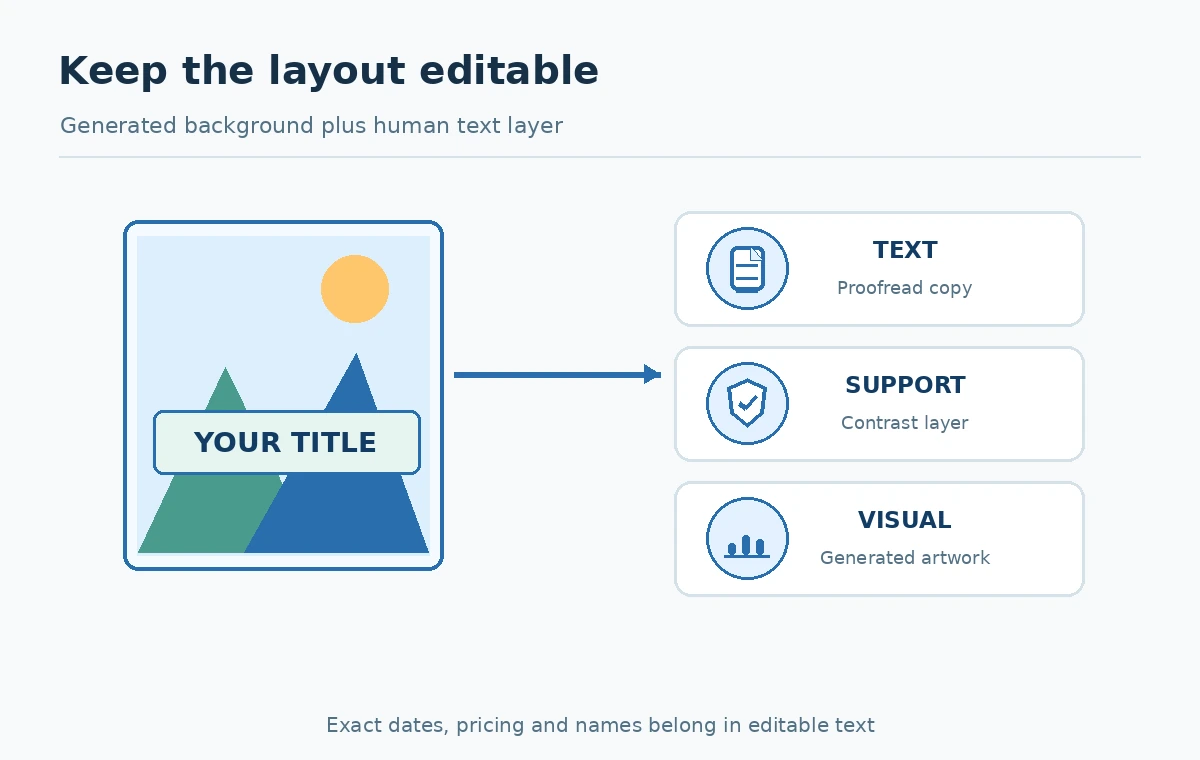
A practical workflow is to create the final canvas first, reserve the title and CTA zones, then produce an image that fits the remaining space. Keep the headline, dates, prices, and legal copy as editable native typography. Magic Media is not universally superior to Dream Lab, and available styles or controls may change with Canva’s rollout. Choose the surface that minimizes copying and rework for your exact deliverable.
Make a two-column decision matrix
Write two columns headed “Dream Lab” and “Magic Media” and compare entry point, reference controls, output revision, design placement, and observed allowance use. Do not assume a quality tier shown in one experience exists in the other. Add a third column titled “human editor” for cropping, accessibility, exact logos, and copy. This prevents confusing model generation with final design production.
Use a single real assignment to make the choice concrete. If you need four concept directions for a campaign, start in Dream Lab and shortlist one. If you have a locked slide grid and need a decorative illustration to fill a defined panel, start in the editor. For either path, reject output that alters a client’s product shape or inserts unfounded factual claims.
Understand Canva AI allowance before iterating
Canva’s AI-usage documentation describes a shared monthly allowance across relevant AI tool classes, with actual consumption influenced by tool and task complexity. The product gives examples of Standard, Premium, and Ultra access rather than a universal “one prompt equals one credit” rule. Canva also documents checking remaining AI usage under Settings and Billing; third-party apps may keep separate credit balances.
Create a small record with prompt, tool, selected settings, starting balance, ending balance, reason for regeneration, and approved file. If reference images or Boost resolution consume allowance in Dream Lab, count those steps too. You cannot compare a plan’s quoted maximum uses with your finished illustrations until you have observed the real deduction pattern.
Keep the typography and identity accurate
For a public-facing design, deliberately leave image-generated lettering out of required copy wherever possible. Place the exact headline, date, disclaimer, contact information, and brand name in ordinary text boxes. This allows proofreading, translation, resizing, and screen-reader-friendly descriptions without regenerating the whole scene. Review contrast after a mobile preview; an AI background can be pretty yet make the title illegible.
Treat logos, employee portraits, product photos, and identifying details as a separate permission question. A generated stand-in is not evidence that a particular product looks that way. If a client expects an authentic screenshot, use a verified screenshot rather than an interface invented by the image model. Ask who can see uploaded reference files before including proprietary material.

Run a repeatable approval loop
Use four steps: prepare an approved brief, generate the minimum useful alternatives, inspect in the actual design, and revise only the failing requirement. Inspect both full-scale detail and reduced mobile display. Check whether the focal subject survives cropping; check whether a complicated background collides with headings; and make sure that every item resembles the intended concept instead of a fake real-world document.
When a change is merely a headline typo, spacing issue, or brand-color adjustment, use Canva’s normal editor rather than another generative cycle. Record who reviewed the file, why it passed, and the location of the export. This is more auditable than remembering that one preview “looked good.”
Choose the final export based on its destination
An article cover, transparent icon, PDF flyer, and presentation slide have different delivery requirements. Select the destination dimensions before exporting; inspect any automatic resize and confirm that foreground objects are not cropped. Where a background image needs to remain flexible, retain the editable design file rather than storing only a flattened image. Keep the source of factual labels and a brief alt-text description in your publishing checklist.
Choose a paid plan only when an actual requirement is blocked by your current allowance, quality control, privacy conditions, export option, or team workflow. Review the current in-account entitlements and terms on the purchase date. The right outcome is an accurate, accessible design, not merely an extra batch of generated pictures.
How We Research
Source verification date: October 27, 2026. We checked these official product instructions: Canva: Generate images with Dream Lab, Canva: Magic Media images, Canva: Understanding AI usage. The checklists and illustrative methods in this guide are editorial frameworks for readers, not claims of purchased subscriptions, hands-on output benchmarks, testing private accounts, or legal advice. Current model availability, allowances, licensing and access may depend on account status and can change; verify the live account and terms before relying on them.
Frequently Asked Questions
No. Canva documents Dream Lab as a dedicated creation experience and Magic Media as an option available in the editor; features and paths differ.
Its guide says a prompt produces four options, but suitability must be reviewed and generation may be subject to access or safety limits.
Canva documents the AI usage tracker in Settings, Billing. A third-party app may track its own usage.
Usually keep critical copy as editable Canva text so spelling, accessibility and size are controllable.
Only after confirming permission and the account’s sharing and data terms; use non-sensitive references by default.