
A neighborhood plant swap needs a card for every donated cutting: plant name, donor’s display name, light preference and an optional care note. Copying those details manually into dozens of designs invites swapped names and stray personal information. Canva Bulk Create can link spreadsheet columns to elements in one design and generate multiple versions. This fictional event illustrates a reviewable production workflow, not cards generated in a Canva account or results from a printing test. The goal is to keep attractive typography subordinate to accurate, approved data.
Set the source-of-truth sheet before designing
Make one row per physical plant or donated item rather than one row per person. Use columns such as Card ID, Plant Name, Display Name, Light, Watering Note and Approval Status. A donor may prefer “Community Member” instead of their full name; collect only that approved label. Remove phone numbers, email addresses and unapproved medical or allergy claims from the sheet entirely. Keep a versioned master copy with an organizer-owned approval column, and filter out rows marked Pending. If a donor brings two different plants, those should be two separate, traceable rows. Design is downstream of consent and source accuracy.
Build a template with clear placeholder boundaries
Choose one card size based on the actual holder or print stock, leaving safe margins around the edges. Place a separate text element for plant name, person label and care line; use a fixed frame for any permitted illustration. Avoid letting a decorative image carry factual care guidance. Test a long fictional name and a multiword Latin plant name to discover overflow early. A readable fallback can use a smaller font or an agreed short label, but never trim a species name silently. Provide a small ID field on the back or organizer proof, not an internal publishing code on the public face.
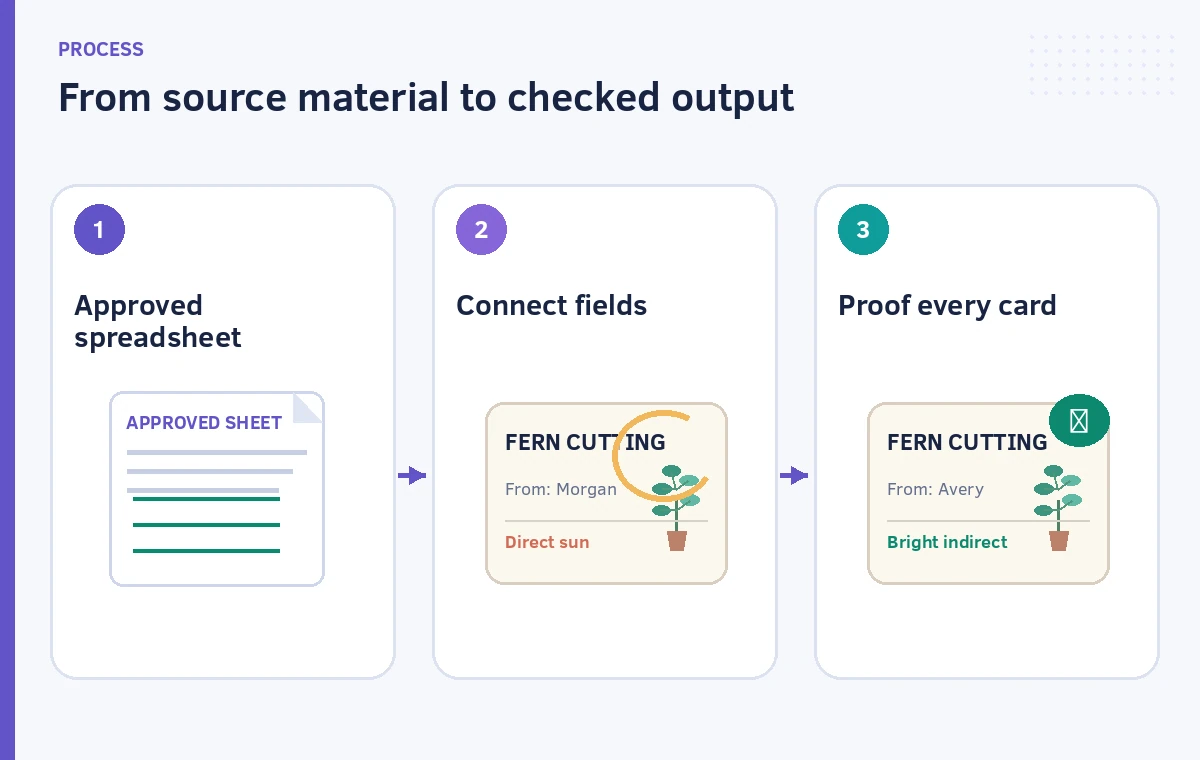
Connect the columns deliberately
Canva documents Bulk Create using Canva Sheets, uploaded CSV/XLSX data, connected sources or a manually entered table. The editor connects named data fields to text elements or image frames. For a spreadsheet import, inspect column headers, the selected worksheet and the row range before proceeding. Where Canva offers AI Auto-match from a Sheet, regard that mapping as a suggestion and verify every binding manually: Plant Name must not land in Display Name, and Watering Note must not appear in the Light field. A correct-looking first card is not proof that later rows map safely.
Generate a small proof batch first
Create a small, intentionally varied review subset before generating all rows. Include a long plant name, a card with a blank optional note, a donor using a generic display name, a duplicate common plant name with different IDs and a card containing a diacritic. Inspect the same fields across every generated page, not only the cover example. Canva’s help describes each data row as a new design version and lists separate field and row limits depending on the entry route. Those limits can change; use the live help article and workspace plan when sizing a run. Do not treat bulk creation as bulk approval.
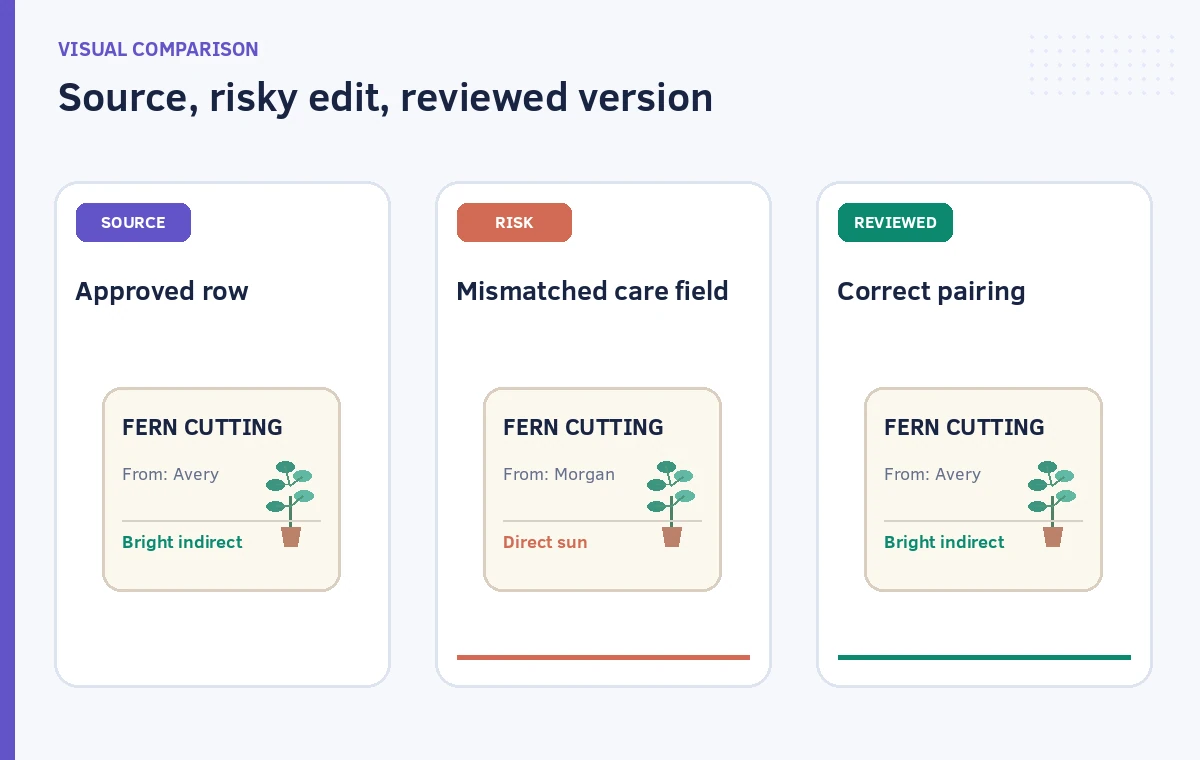
Compare records to individual card proofs
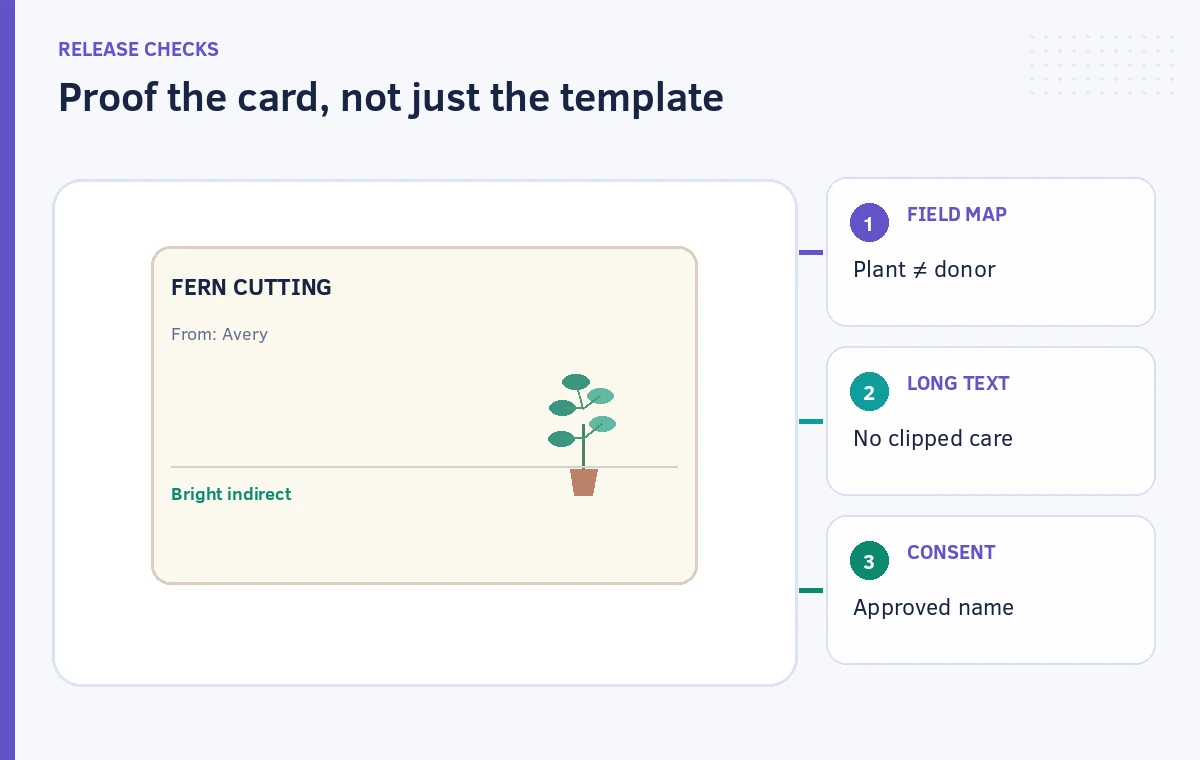
Match every generated proof to its Card ID in the approved sheet. Compare plant spelling and display names directly, character by character when names are unfamiliar. A realistic failure is two cards with the correct visual template but the wrong care lines because the columns were connected in reverse. Another is clipped text that hides “indirect” from “bright indirect light.” Use a side-by-side ledger with source value, card value, reviewer initials and decision. Mark the mismatch as Blocked and correct the source or template rather than changing one isolated card without documenting why.
Keep the print design accessible and legible
Inspect cards at their physical output size. Check font size, contrast, line breaks, whitespace around text, and the readability of the light and watering directions. If colored plant icons encode care categories, repeat the meaning in words so that color is not the only cue. Avoid relying on a screen preview at 200 percent zoom: a delicate hairline or pale text can fail on inexpensive card stock. Request a sample proof from the printer for actual ink and paper behavior if printing matters. No illustration in this article represents a measured color or print result.
Control export, naming and distribution
Export only approved design pages and keep the final printed order aligned with the event’s packing list. Check whether the chosen export format, page size and bleed settings match the printer’s request. Keep the original spreadsheet out of shared print folders if it contains organizer-only information, even when the design itself uses only display names. Label final proofs with their stable item IDs in an organizer-facing checklist. After an edit, regenerate and re-review the affected cards instead of assuming a previously approved PDF still matches the latest sheet. Retain one signed-off revision for reprints.
Decide what a successful bulk run means
Success is not the count of designs Canva generates. It means each approved physical item has exactly one readable, correctly paired, consented card and a traceable reviewer. A useful handoff contains the final exported file, an approval tally, a list of held cards, the verified data snapshot and the print specifications. If the data changes on event morning, distinguish a quick corrected reprint from the original run. Bulk Create is best for repeated visual formatting; it cannot know whether a cutting is the correct species or whether a donor permitted their name on signage.
How We Research
We checked Canva’s official Create designs in bulk guide for spreadsheet imports, per-row designs, data-field binding, desktop availability, plan eligibility and the Sheet auto-match option. The workflow is a fictional event-production scenario built to expose mapping, privacy and print-proof risks; there was no Canva account execution or physical print trial. Product menus and usage limits may differ by workspace and release. The diagrams are instructional illustrations, not Canva screenshots, measured accuracy evidence or output files.
Frequently Asked Questions
Yes. Canva documents spreadsheet uploads including XLSX and CSV. Confirm the imported sheet and data range before connecting fields.
No. Auto-match is a convenience for supported Canva Sheet workflows; inspect every relationship between source column and design element.
Keep contact data out of the design-production sheet unless strictly required and authorized. Display only names that participants have approved.
The layout can become cramped or clipped. Check deliberately long examples and resize the template or obtain an approved short label.
No. Complete a row-by-row accuracy, permission and print-size review before exporting only the approved pages.