
A problem-by-problem repair process that explains what audio enhancement cannot recover. This guide focuses on decisions a real editorial team can verify, not unperformed lab tests or vendor marketing scores.
Identify the noise before pressing Enhance
A single “make audio clear” command hides several different problems. Steady hiss or fan noise is not the same as intermittent keyboard taps; electrical hum differs from room reverberation; uneven loudness is not missing speech. Listen to twenty seconds of the raw recording with headphones and name the main fault. Mark whether speech is intelligible before processing and whether separate microphone tracks exist.
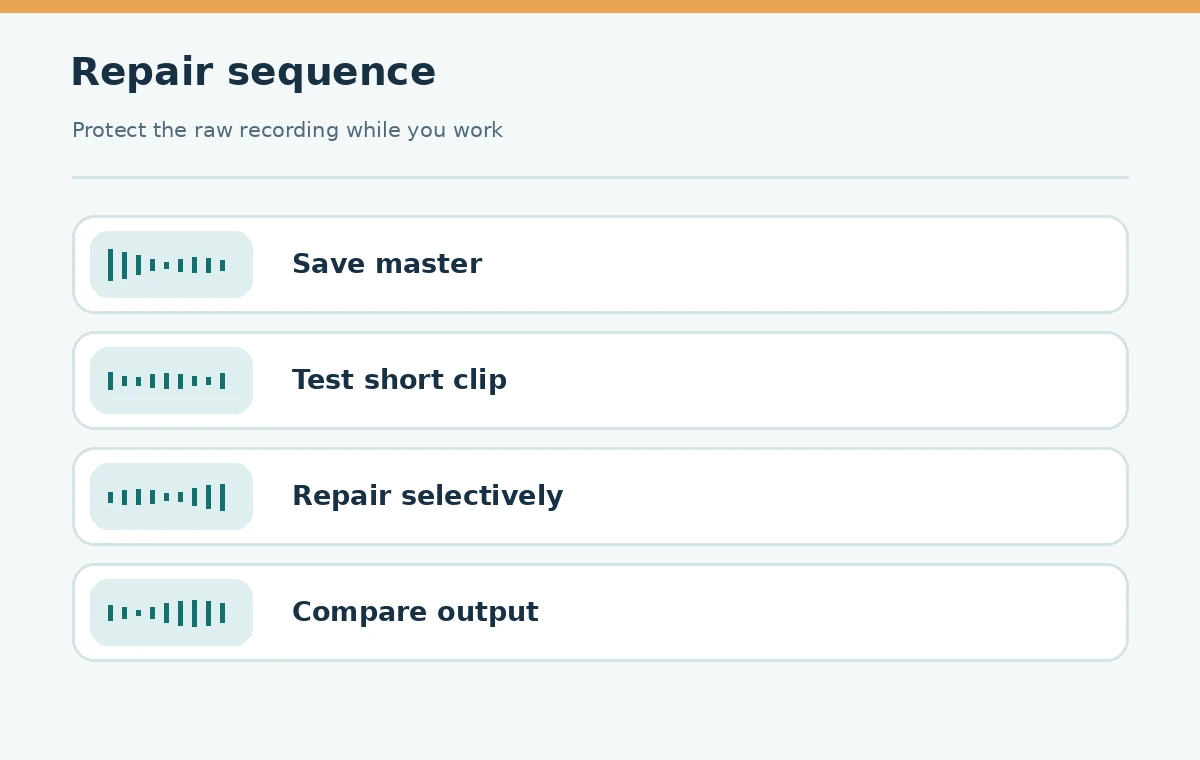
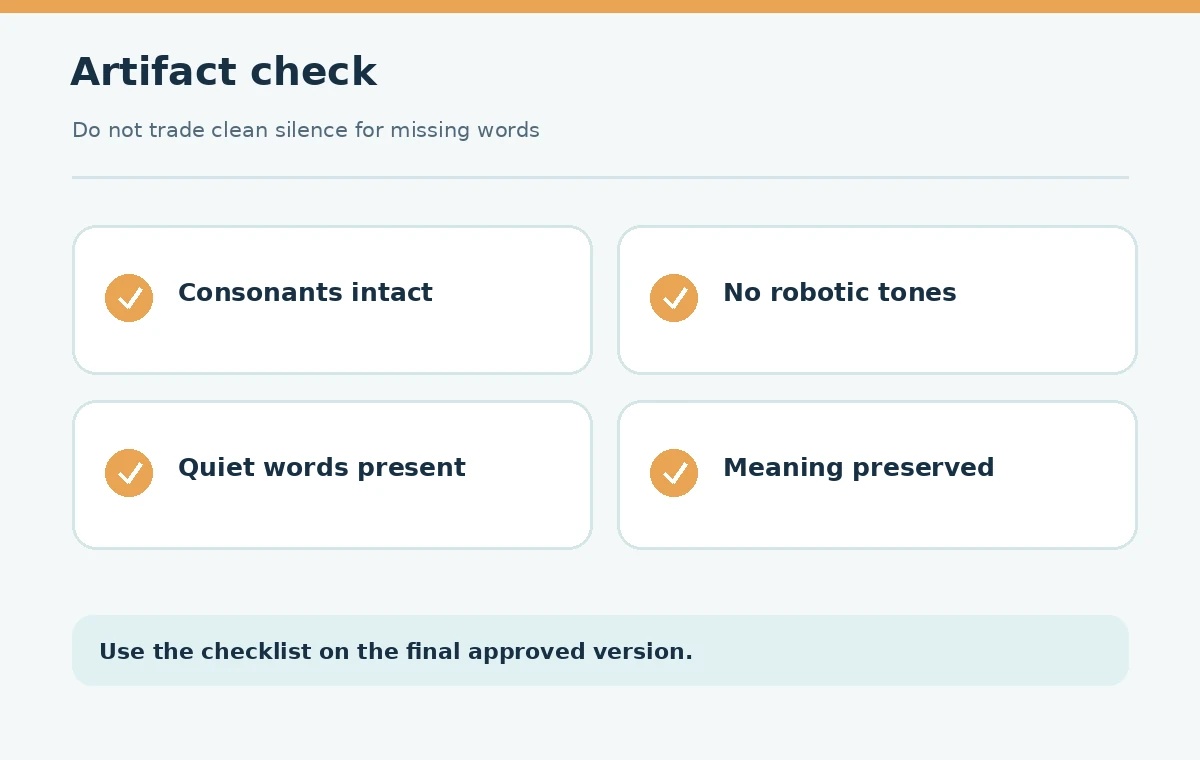
Save an untouched master and duplicate the work file. Record the source format and create a few comparison timestamps that include a quiet phrase, a loud word, a consonant-rich line and a noisy pause. This small test set lets you decide whether a restoration improved understanding rather than merely removing the sound of the room.
Use Adobe Podcast for a cautious speech-enhancement pass
Adobe Podcast Enhance Speech is a browser-accessible option for voice material. Adobe’s own FAQ says enhancement can filter noise and artifacts and adjust the sound, while warning that results depend on the audible speaker and noise level. It does not translate speech or reconstruct guaranteed correct words from otherwise incomprehensible input.
Run a short representative segment first. Compare dry, natural speech against enhanced output at matched listening volume. If sibilants sound metallic, background talk disappears along with a useful word, or the main speaker seems to have a different timbre, reduce processing or choose a different path. Check current account-specific duration and upload rules before committing sensitive recordings.

Treat constant hiss differently from changing noise
Audacity’s Noise Reduction effect is most useful for relatively constant noise. Its manual describes capturing a noise-only profile, previewing the selected reduction and checking the residue to see whether desired voice content is being removed. It explicitly warns that aggressive settings can create warbling or musical artifacts. A quiet moment containing a faint syllable is not a valid noise-only sample.
If no clean noise sample exists, do not fake one by selecting speech. For variable street noise or overlapping people, consider rerecording or more selective editing rather than applying a strong global profile. Good restoration keeps the words understandable; the goal is not to manufacture absolute silence in every pause.
Separate hum, clicks and reverberation
A low electrical drone may need a notch or hum-specific filter; a single keyboard click may be better cut or repaired locally; a reflective room adds reverberation that ordinary broadband noise reduction may not remove gracefully. Diagnose these by listening rather than assuming one AI model addresses every fault equally well.
Audacity documents alternative techniques for constant tones, spectral repair and noise gating. Use a specialized tool only for a fault you can identify. A noise gate mainly lowers noise in quiet gaps; it does not clean noise that overlaps active speech. Test on soft words because a poorly chosen threshold can chop their endings.
Balance loudness only after speech is acceptable
Auphonic documents adaptive leveling for uneven speakers and loudness normalization for the final file. Leveling is different from noise removal: it changes the relationship between quiet and loud segments, potentially making a previously unobtrusive background sound more obvious. Use restoration first where appropriate, then adjust dynamics and delivery-level targets.
Apply settings for the actual destination rather than copying a universal LUFS number. An interview, an audiobook and a course video may have different specifications and music beds. Review peaks, long pauses and transitions after processing. A target meter reading is useful, but a damaged consonant or inaudible reply is still a failure.
Watch for hallucinated or missing audio
Enhancement may make speech feel smoother without restoring what was truly said. If a sentence was masked by a car horn, compare the altered passage with the original and any authentic transcript or secondary microphone. Do not create a confident quote from guessed syllables. If information is important, request clarification or rerecord a clearly labeled correction.
Pay particular attention to names, numbers, medical claims, financial figures and legal instructions. An automated audio cleaner is not a fact-checker. Do not publish an invented reconstruction as a recovered original. Preserve disclosure when a replacement line is newly recorded or synthetic, according to the requirements of the production.
Use a restrained three-pass workflow
Pass one: diagnose and repair the dominant noise on a short test. Pass two: perform only local fixes for isolated events and use mild leveling if multiple voices vary in volume. Pass three: export a comparison file and review four benchmark timestamps plus the beginning and end of the recording. If the result sounds thin or watery, dial back the earlier processing rather than layering on more enhancers.
Name intermediate renders descriptively—raw master, noise pass, reviewed mix—and keep processing notes separate from publicly displayed filenames. Never overwrite the only master. Try listening on phone speakers, because small speakers can expose consonant loss that headphones mask. If a tool changes language or pronunciation, return to the source.
Know when cleanup is the wrong answer
If the voice is clipped, recorded far away, masked by competing speech or lost entirely, no service can promise faithful reconstruction. The responsible choice may be to subtitle a partially intelligible line as uncertain, ask for a pickup, replace a segment with an authorized new recording or omit it without changing the story. Recording technique often delivers more benefit than another algorithm.
For future sessions, position the microphone near the speaker, reduce room reflections, wear headphones and capture an isolated track for every guest where possible. Audio cleanup is a safety net, not a substitute for reliable capture. Publish only after a listener who has not heard the original can understand the words without artifacts becoming the focus.
How We Research
On October 27, 2026, we reviewed Adobe’s Enhance Speech FAQ, Audacity’s noise-reduction and spectral-editing manuals, and Auphonic’s leveling documentation. The repair sequence is editorial guidance from these sources; LabFin did not run controlled audio restoration tests. We do not promise recovery of masked or unintelligible speech. Primary sources: Adobe Podcast FAQ; Audacity Noise Reduction manual; Audacity alternative noise methods; Auphonic audio algorithms.
Frequently Asked Questions
It may attenuate some interfering sound, but overlapping speech is difficult to separate faithfully. Check carefully for lost words and consider rerecording when meaning is obscured.
Save the untouched master, identify the specific noise type and test on a short segment containing both speech and noise before processing an entire recording.
Listen for metallic consonants, watery or musical artifacts and truncated quiet syllables. Compare at matched volume and use Audacity’s residue preview where appropriate.
No. Adobe states Enhance Speech is language agnostic and does not translate; it processes acoustic quality and depends on the audibility of the original voice.
Often it is more practical to address the dominant noise first, then balance levels. Exact order depends on the source and tools; monitor whether leveling amplifies remaining background noise.