
An event organizer owns a portrait of a guest speaker standing by a greenhouse window. The newsletter needs a wide header with room for a headline, but cropping the source photo would cut off the speaker’s shoulder. Adobe Firefly’s Expand feature can create pixels beyond the original frame. That makes it a layout tool, not a window into what was actually outside the camera’s view. This guide uses a hypothetical, consented portrait and an imaginary greenhouse setting to explain aspect ratio, generation, comparison and disclosure. None of the pictured expanded scenery represents a real Firefly result or an authenticated location.
Set the identity and provenance rules before expanding
Start with a source image you are authorized to edit and share. Confirm that the speaker agrees to the proposed promotional context; possessing a file does not itself establish publicity rights. Decide which parts must remain exact: face, hair, clothing, name badge and posture. Note whether the original shows real signage, architecture or a recognizable venue. Generated scenery could accidentally suggest the person visited a place or stood beside an object they never encountered. Save the original photo separately and plan to retain the unexpanded central region. If the final header is labeled as documentary photography, establish an approval or disclosure process for synthetic surroundings before production.
Design the target header instead of expanding blindly
Sketch where the newsletter headline, logo and call to action will sit. A wide header usually needs open negative space opposite the subject. Choose a target aspect ratio based on the actual design, with extra room for responsive cropping. Adobe’s Firefly help currently describes Freeform and preset ratios including 16:9, so the intended shape should be selected in the tool rather than improvised after several unrelated generations. Identify safe margins around the face, hand and headline so neither the original subject nor the important text is clipped by a narrower mobile rendering. There is no single pixel dimension guaranteed by the Firefly feature itself.

Open Expand and establish the original image boundary
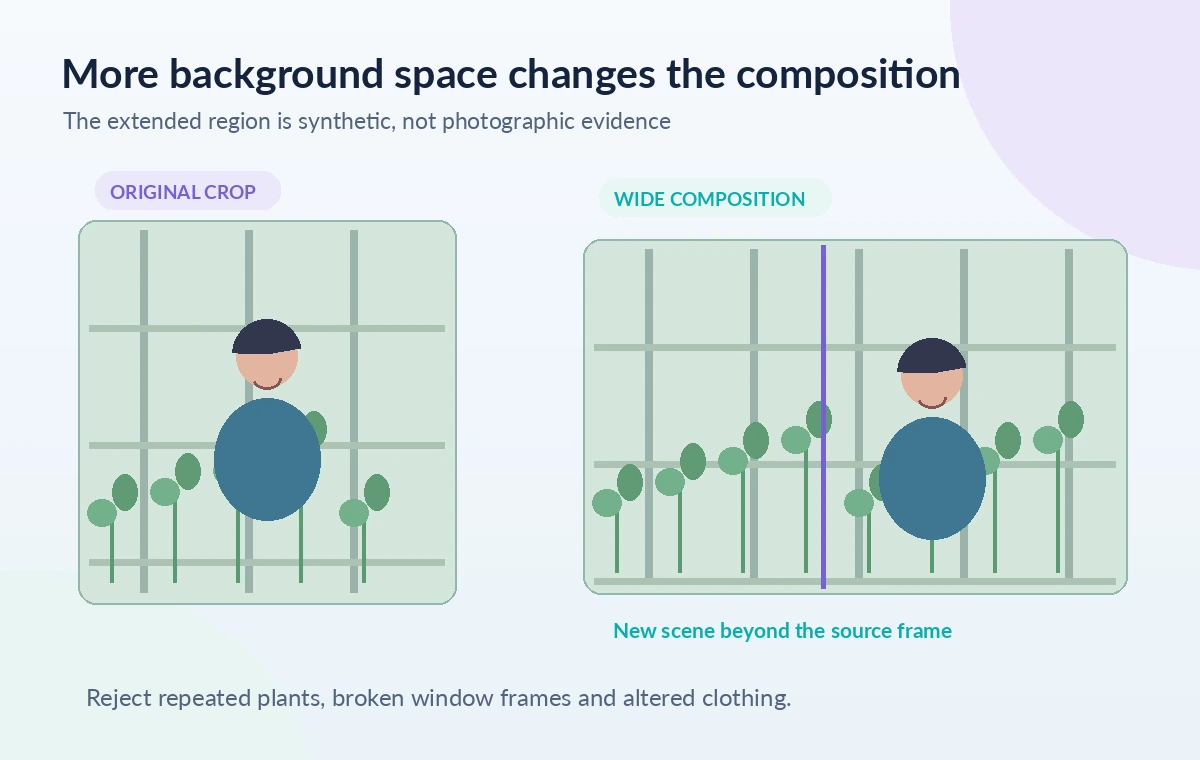
Adobe documents finding Expand through its Image module or an image’s Edit tab, with an option to upload a local or cloud image. On a permitted copy, open the portrait and set the boundary that needs additional canvas. Preserve the center image rather than trying to redraw the speaker. The explanatory image uses a colored border to separate original photographic territory from proposed generation; this border is not an interface screenshot. Check whether the desired width can be achieved with one extension or whether the composition should instead be rebuilt manually. If the starting image is very low resolution or blurred, outpainting cannot make its factual details reliable.
Give the new region a controlled visual direction
Firefly’s instructions allow an optional prompt to describe what should appear outside the original frame, or a blank prompt that lets the tool infer context. For a greenhouse portrait, a conservative direction might be ‘soft out-of-focus greenhouse windows and neutral wall, no text or new people.’ This is an illustrative prompt, not one executed here. Avoid requesting invented award banners, company logos, scientific equipment or named landmarks that could imply an untrue association. Keep the intended right-side region quiet enough for a headline. If the scene looks too busy after generation, adjust the boundary or direction rather than compensating with unreadable text.
Compare candidate extensions around the seam
The most important visual inspection happens at the original-image boundary. Check the window frame as it crosses the seam: does a vertical support become crooked or multiply? Do plants repeat with impossible stems? Does perspective remain consistent with the camera’s eye level? Compare brightness, depth of field and color temperature on both sides. Expanded content can look plausible when viewed small but reveal obvious duplication or discontinuity at full size. The before/after panel in our artwork shows a conceptual wider background; it does not claim Firefly generated those specific plants or that the output passed a real quality test. Reject extensions that create a second shoulder or alter clothing edges.
Protect face, hair and clothing from accidental edits
Even though the workflow is aimed at background space, a close seam can affect subject edges. Zoom into flyaway hair, glasses, ear, shoulder and sleeve. Make sure the person’s facial expression and any visible badge remain consistent with the original. A generated shadow can change the apparent direction of light across the face, while a new object behind the head can look like a physical attachment. If the subject itself changes, restore the source or move the expansion boundary farther away. AI-generated content should not be described as an authentic camera capture of the unseen surroundings. The visual audit therefore separates protected original detail from new, unverified context.
Place typography and check responsive crops
Once the expanded background is acceptable, add the headline in the page or design editor rather than baking a large text block into the generated scenery. Test legibility over dark and bright areas and make sure the type does not collide with the subject. Preview a desktop-wide layout and a narrower mobile crop. The speaker’s face should remain inside a safe composition while the text can reflow or move. If the extra generated window framing distracts from the headline, soften the layout with conventional editing or choose a different source. Do not rely on AI to render accurate event dates, sponsor names or legal language inside the picture; keep those as editable, verified text.

Record final selection, costs and disclosure decisions
Firefly’s current help notes that generation credits can vary by model and can be inspected near the Expand action. Check the current account’s actual allowance and licensing terms rather than quoting a universal cost. Preserve the source, chosen expanded version and design layout. Ask the authorized person or team to approve any synthetic elements that might appear as factual context. Review the final file at 100% and in its real destination, including the seam, subject identity, headline clearance and responsive crop. An expanded portrait can be useful promotional art, but its new surroundings remain generated content rather than evidence about where the subject stood.
How We Research
We reviewed Adobe’s Firefly Expand help for entry points, available aspect-ratio options, optional prompting, boundaries and model-dependent credit indicators. We also consulted its generation-history guidance for retaining and locating generated assets. We did not open an Adobe account, submit an image, receive generations, verify subscription rights or compare live output. Every greenhouse extension and seam check in the figures is a designed illustration; personal consent and commercial rights must be confirmed independently. Official documentation reviewed: Adobe Firefly Help: Expand images; Adobe Firefly Help: Generation history overview. Recheck the live docs before proceeding because interfaces, availability and model support can change.
Frequently Asked Questions
No. It generates plausible new surroundings; those pixels are not a historical reconstruction of the scene beyond the original frame.
Adobe documents a 16:9 aspect-ratio option alongside other presets and Freeform. Exact output suitability depends on your design and source.
Usually keep event text in an editable layout layer. That makes names, dates, mobile crops and accessibility much easier to check.
Inspect the boundary between source and synthetic pixels, especially subject edges, window frames, light direction and repeated textures.
No. Adobe says credit consumption varies by model. Check the current indicator and account terms before generating.