
An after-school garden club wants a short interactive quiz: choose which conditions a seed needs, distinguish germination from flowering, and practice reading a seed packet. A quick AI-built interface can be useful, but a plausible answer such as “all seeds sprout in three days” is too confident. Species, temperature, moisture, and seed condition change the answer. The club needs an editable learning activity, not numbers invented to make a game feel complete.
Google documents Gemini Canvas as a space for creating and editing documents, apps, slides, and code. The help page describes app previews, code view, console access, and revision prompts. None of these affordances make a quiz answer scientifically correct. This walkthrough uses fictional packets and a teacher-reviewed answer sheet to separate interface generation from content validation.
Write the teacher-approved answer key first
Create a short source sheet with exactly the claims the lesson should teach. For a beginner quiz, the required concepts can be broad: seeds need suitable conditions, germination is not the same stage as flowering, and the package instructions matter for a particular variety. Avoid a single universal day count or temperature threshold unless a named species and documented source justify it.
Prepare five questions with answers, short explanations, and pointers to an approved school or extension resource. A question asking “How many days will this seed take?” should display “Check the variety and packet conditions” unless a specific packet has been included. This approach also teaches uncertainty rather than hiding it.
Build the first quiz prototype in Gemini Canvas
Sign in to Gemini Apps and choose Canvas using the current Add files / Canvas control documented by Google. Describe an app with one question at a time, visible answer choices, a progress indicator, and a results screen that explains each choice. Provide the teacher’s synthetic answer sheet as the only basis for fact statements; ask it not to supplement missing numbers.
Keep the scope small. A five-question prototype is easier to inspect than a large generated course. Tell Canvas that an answer must not become “correct” merely because it sounds practical. Ask it to display a brief source note for each explanation and to preserve the distinction between an answer that is wrong and one that cannot be evaluated with the supplied evidence.
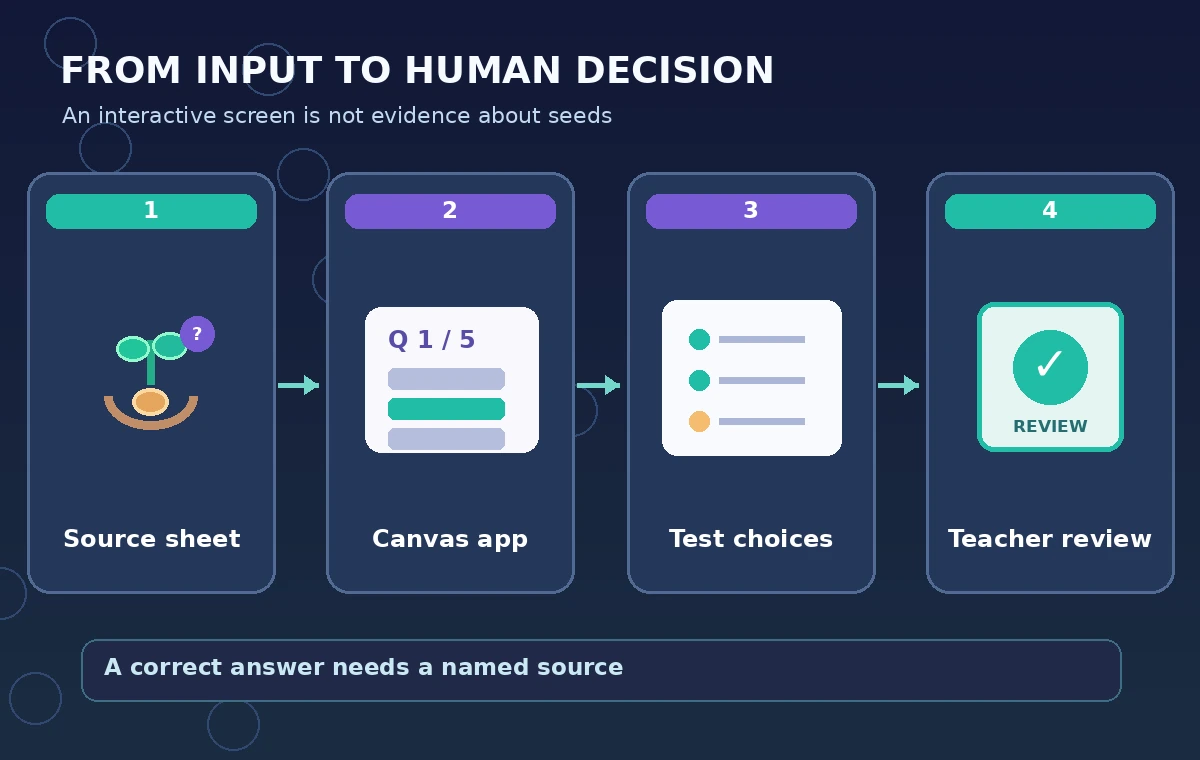
Inspect code and the preview as separate artifacts
Google documents Code view and a Show console control for Canvas app previews. Use them to find whether the answer key in code matches the teacher’s sheet. A button can show a correct-looking message while the internal answer flag points to another option, so a visual-only review misses a real software defect.
Try every choice on every question. Verify the next button, focus order, score computation, and the ability to restart without carrying an old score. Check narrow screens and zoomed text. A responsive, attractive interface is not equivalent to a valid lesson or an accessible one.
Test the dangerous universal-number question
In the intentionally wrong illustration, a mock quiz says every seed sprouts in three days. In the checked version, the prompt asks learners to consult the relevant packet and conditions. Both images are authored instructional art, not captures of a Canvas run or proof of a common failure rate. Their purpose is to make the unsupported generalization visible.
The teacher should challenge any fixed number, claim of guaranteed success, or gardening step that might vary by plant. Where the lesson has no source for a specific recommendation, rewrite it as a question about what information the learner should collect. That can be educationally stronger than guessing a tidy answer.
Make feedback teach, not just reward points
For each answer, display a short explanation that says why it follows from the source sheet. Avoid celebratory text that accidentally overstates certainty: “This packet lists a range” is different from “Your seed will germinate by Friday.” Keep a clear path for correcting a mistake and reconsidering the evidence.
If the activity contains a simulated packet, label it as fictional and avoid resembling a real brand’s current product. Ask students to bring actual packet instructions from a class-approved example only after the teacher has checked that its claims are current and relevant to the climate or growing context.

Apply a human content and accessibility audit
Use a two-column checklist: expected answer from the source sheet and answer accepted by the app. Test each question with the right and wrong response. Inspect color contrast, controls that work by keyboard, descriptive labels, readable feedback, and whether a screen reader can detect the result without depending on color alone.
Ask someone unfamiliar with the app to complete the quiz. If a learner confuses germination with flowering after reading its explanation, adjust the teaching language rather than adding decorative animation. Do not gather student identifiers or personal data just to see whether a prototype is engaging.
Share a reviewed version and keep a correction path
Google’s Canvas documentation covers sharing and exporting creations, but features and limits vary with the experience and account. Before sharing, verify what the link exposes and whether a future edit changes the version seen by students. Use the approved lesson plan as the source of truth and keep a correction log if a question or answer changes.
For a school audience, follow institutional accessibility and privacy rules, including review of external links. A shared interactive quiz is a teaching aid, not a certified horticultural reference. If the class later wants precise species-specific growing advice, bring in an extension or authoritative seed source that supports those numbers.

Explain the limits of this documentation-based walkthrough
We reviewed Google’s Canvas help and a named USDA gardening resource index for context. We did not generate this app in a live Gemini account, evaluate students, or measure quiz quality. The lesson and mock drawings are intentionally fictional; they demonstrate how to inspect answer logic and uncertainty.
A useful pilot would compare the checked answer key with what the prototype accepts, record errors, and have a teacher approve revisions before classroom use. Neither an AI-generated UI nor a cheerful “correct” animation should be mistaken for independent scientific validation.
How We Research
On November 5, 2026, we checked Google Gemini Apps Help: create docs, apps and more with Canvas and USDA National Agricultural Library gardening resource index. We compared the documented interface, eligibility notes, and stated limitations with this article’s narrow hypothetical workflow. We separately audited the invented example for internal consistency and reviewed the original diagrams for misleading labels. We did not operate the vendor product, interview users, perform performance measurements, upload real records, or obtain an organization’s approval. Any change in subscriptions, controls, or documentation requires fresh verification before use.
Frequently Asked Questions
Google documents Canvas apps and code editing. The quiz still needs a separate content review and testing of its answer logic.
No. Different seeds and growing conditions can vary. Use a named, verified packet or reference before presenting a numerical range.
No. Test the internal answer keys and explanations against a teacher-approved source sheet.
Review permissions, personal-data handling, accessibility, and the full question set before sharing in a school setting.
No. The figures are original illustrative comparisons and not observations of a live Gemini Canvas session.