
Suppose a nature center has approved the outline of a butterfly badge for a trail education kit. The silhouette is intentionally simple: four wings, two antennae, and a small open gap between the lower wings. Staff want a more colorful internal pattern without changing that outer shape. An attractive AI variation that adds a fifth wing or fills the small gap would fail the design brief even if the color palette looked perfect.
Adobe describes Generative Shape Fill in Illustrator as a way to add vector graphics to selected shapes. Shape Strength, Detail, style references, and color options influence variations; the original shape remains independently on the canvas. This walkthrough treats the original vector outline as the authority and AI-generated interior art as a candidate that needs geometric inspection.
Choose a silhouette whose details can be counted
Begin with a legally usable original outline that the design owner has approved. For the hypothetical butterfly, record four wings, two antennae, bilateral balance, and the intentional notch between the two lower lobes. These are concrete acceptance criteria that can be inspected at small and large sizes. Keep the master silhouette in an untouched layer or separate version of the file.
Avoid building the test around a species identification claim unless a qualified source has verified its field markings. A decorative butterfly badge can be labeled as an original stylized emblem. An educational identification guide, by contrast, requires different checks and species-specific evidence that generative styling alone cannot provide.
Select the path and open Generative Shape Fill
Adobe documents the Selection tool and Generative Shape Fill entry points including the Contextual Task Bar and Object > Generative. Open the function after selecting the relevant shape or shapes. The documentation covers open and closed paths, groups, and compound paths, so inspect how your particular artwork is organized before deciding what to target.
If the wings and antennae have distinct roles, consider whether the fill should apply only to the wing areas rather than the entire grouped badge. Generating in a smaller, clearly defined region makes later inspection easier. Keep the outline available for side-by-side comparison and avoid destructive edits that remove your reference.

Prompt for interior decoration, not anatomical changes
Write a restrained prompt such as “small layered leaf motifs inside the existing wing shapes, two-tone teal and plum, no additional appendages.” The instruction guides aesthetic content but does not constitute a hard geometric guarantee. Shape Strength is the explicit documented control intended to influence how closely the variation matches the chosen outline.
For a critical logo shape, start with a higher shape-strength setting and moderate detail. Lower strength can allow a more natural contour at the cost of strict adherence. The best option is determined by comparison with the master outline, not by a universal slider number; the control may behave differently with a compound path and dense artwork.
Inspect variations and keep the original path independent
The Adobe help page describes generated variations and a Generative Object in the document. Look through candidates without assuming the first option is best. Confirm that the original path remains intact; then judge the generated fill as a separate piece of editable artwork. Check corners, gaps, wing count, and whether decorative petals are mistaken for new body parts.
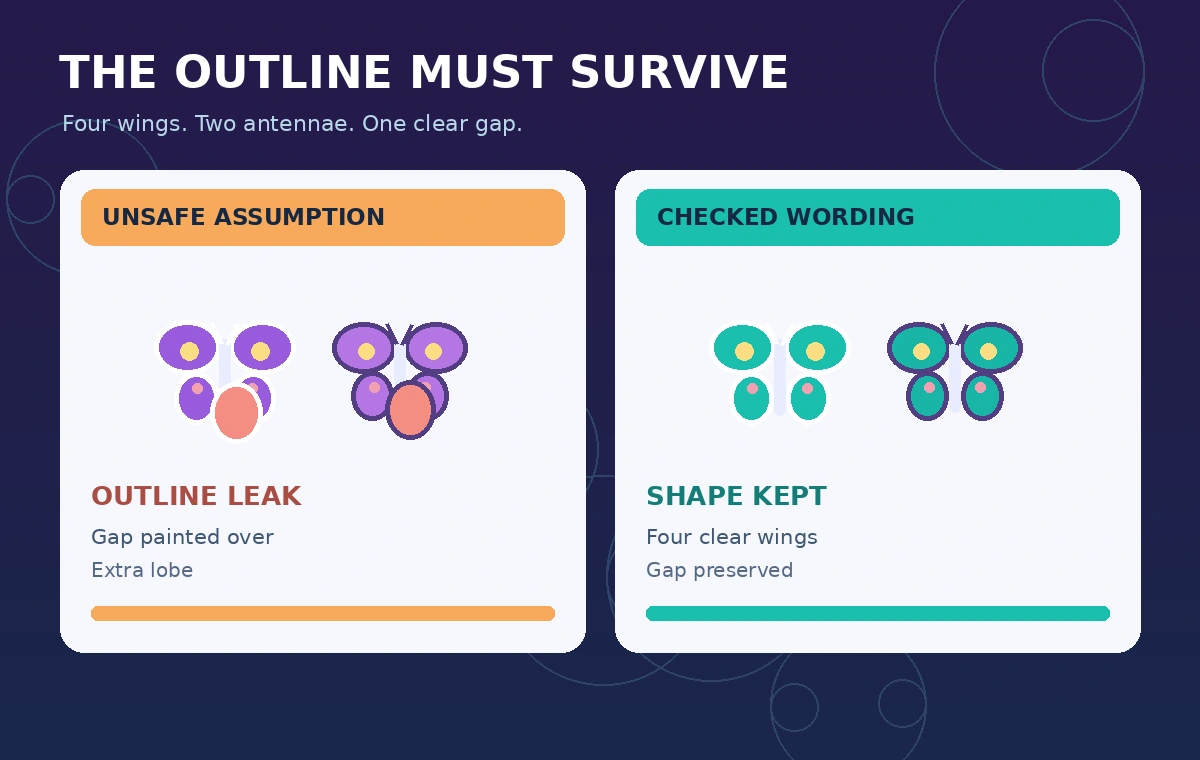
In the illustration, the unsafe fill spills across the original lower-wing gap. The checked concept keeps that gap visible. Neither drawing is an Illustrator screenshot or an evaluated model output. The comparison is intentionally exaggerated to make the kind of silhouette error easy to recognize.
Control detail, color, and style references thoughtfully
Adobe explains settings for shape strength, detail, optional style references, effects, and color specifications. For a trail badge, use limited colors so patterns remain readable at patch or sticker size. More detail is not always better: tiny curls that look striking at full monitor resolution can turn into mud when the artwork is printed small.
If the brand owner supplies a style reference, confirm usage rights and preserve the asset separately. Do not infer that the presence of an approved reference grants permission to copy a third party’s distinctive mark. Style consistency is a design task; authorship, licensing, and trademark review are different responsibilities.
Examine outlines and overlapping shapes at high zoom
Before export, zoom into the wing edges. Look for fill strokes extending beyond the target, tiny closed holes that should remain open, extra lobes mistaken for wings, and antialiasing gaps between adjacent shapes. Hide the generated object temporarily to confirm the original silhouette still has the intended proportions. Then place the fill back above or inside the expected vector hierarchy.
Also review the expanded artwork at a small intended delivery size. A butterfly badge should still read as a coherent emblem at the size used on an information card. If a detail is not legible, simplify the vector rather than forcing a denser AI variation into a limited area.
Export versions and document what is synthetic
Keep an editable Illustrator master, the accepted variation, and an export suitable for the intended design tool. Review any transparency and path behavior after export; a clean preview does not guarantee that every output format has preserved the same vector structure. If a downstream printer has a color specification, obtain it before final output.
Adobe documents that generative features use credits and that exported assets may include Content Credentials in supported formats. Feature access can depend on application availability and subscription terms, so check the actual workspace. Describe the art as an original AI-assisted illustrative design rather than a photograph of a real animal or certified species rendering.

Apply an approval checklist before distributing the badge
The reviewer should compare the result to the approved design brief, not simply choose the prettiest variation. Confirm the four-wing silhouette, two antennae, visible lower-wing gap, clear colors, legibility, and correct orientation. If any item fails, revise the artwork or choose another candidate before attaching the design to educational materials.
This is a proposed verification workflow, not a claim that we generated samples inside Illustrator or tested print quality. Our companion figures are intentionally hand-built instructional graphics, allowing the design checks to be understood without pretending the software produced a measured example.
How We Research
On November 5, 2026, we reviewed Adobe Illustrator Generative Shape Fill instructions and Adobe Illustrator generative AI FAQ. We cross-checked documented controls, eligibility notes, and limits against the workflow in this article. We checked the wording of each hypothetical status and reviewed the editorial diagrams for clear before/after differences. We did not operate the vendor software, upload records, conduct user studies, measure performance, or verify a real-world organization. Product interfaces and plan entitlements can change.
Frequently Asked Questions
Adobe describes the generated fill as a separate Generative Object while the selected original shape remains on the canvas. Keep a protected master anyway and inspect the resulting composition.
Shape Strength is the documented control. Higher values favor closer outline matching, but a reviewer still needs to inspect the actual result for gaps and extra contours.
No. Check the exact silhouette, wing count, notch, small-size legibility, and agreed colors against the original design brief.
Only with appropriate permission for your use. Having access to a style-reference control does not grant rights to copy protected artwork or branding.
No. They are original instructional illustrations showing possible shape problems and human checks, not screenshots or observed Illustrator results.