
A museum photographer shoots a small ceramic vessel behind a glass case. The image captures a window reflection over the display, but the vessel and its accession label are still valuable documentation. Removing the glare may make the photo easier to read; it must not create a new inscription, smooth away a scratch, or alter the edge of the object. An edited exhibition photo is not automatically a trustworthy archive record.
Adobe documents AI-powered Reflection Removal in Lightroom and Lightroom Classic, including an Amount slider and output-quality options. The September 2026 documentation describes improvements for complex reflective surfaces. Here the museum and label are fictional, and the drawings are illustrative rather than before-and-after results of actual processing. The workflow separates visual cleanup from factual preservation.
Save an untouched master before changing reflections
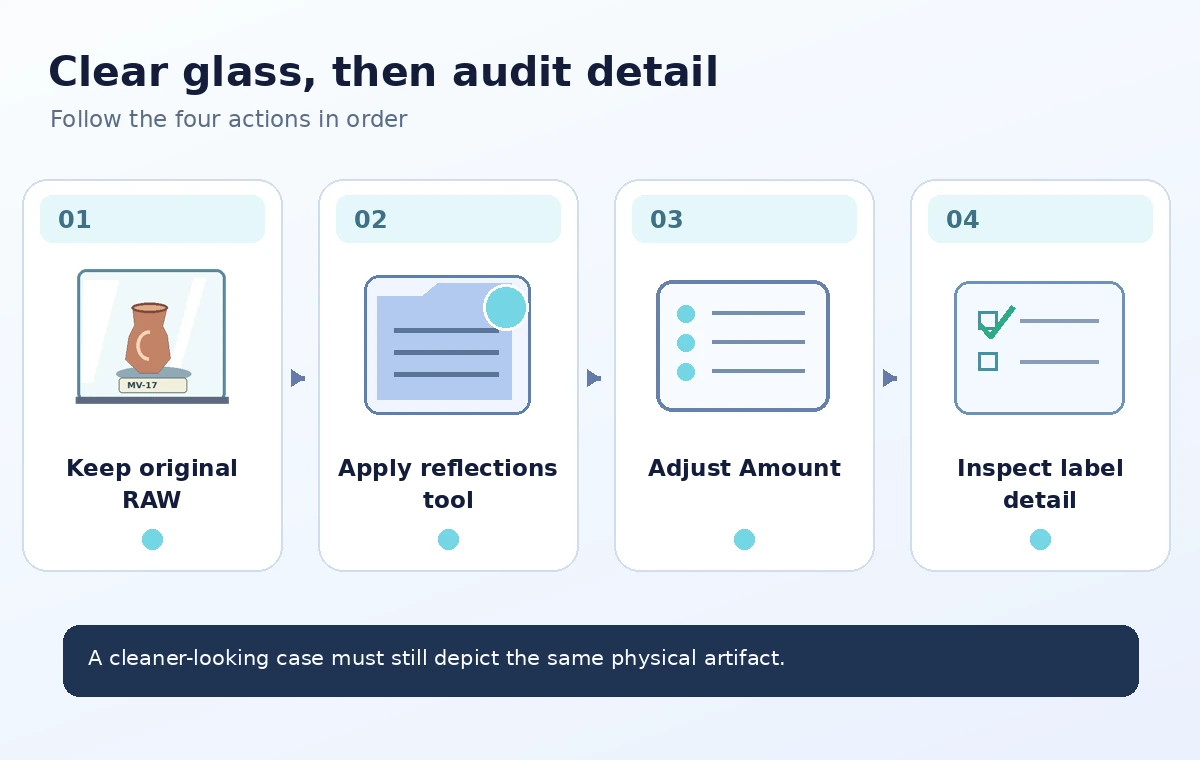
Export or safeguard the original capture under the archive’s approved naming and storage rules. Record the capture date, camera metadata, object identifier, and how the image was obtained. If the image is an official condition record, keep it immutable and label the edited derivative separately. No amount of visual polish makes an altered derivative a substitute for the authenticated source file.
For the hypothetical case, the label contains an accession code that must stay readable and unchanged. Make a reference crop of the label and a second crop of the vessel rim before starting. If glare obscures the label so completely that its original letters cannot be verified, do not invent them from context or a different artifact’s label. A curator may need a second direct photograph instead of more AI editing.
Locate Reflection Removal in the documented editor
In supported Lightroom desktop views, open the photo and navigate to Remove > Distraction Removal, then apply Reflections. Adobe’s current help page describes an Amount slider that can reduce reflections or isolate them for inspection. Lightroom Classic has a similar workflow. Interface placement, processing options, and availability can differ by software version and device, so confirm the applicable instructions for the installed edition.
Adobe’s Lightroom Classic documentation says the feature supports raw and non-raw images and lists a limitation for Windows on ARM systems. Start with the original high-quality source whenever possible. Do not present a generated setting value as universally correct; a glass reflection over a bright label is unlike a window reflection over distant scenery. The important decision is whether the result remains faithful.
Compare conservative and aggressive Amount settings
Create a virtual copy or use the editor’s non-destructive controls. Begin at the unedited Amount position, then try a moderate reduction and compare it with a stronger option. Adobe describes zero as the original view and positive settings as reflection reduction, while negative settings can isolate reflected content. The documentation also cautions that some photos may produce an inverted apparent result. Read the actual frame rather than trusting the slider direction alone.
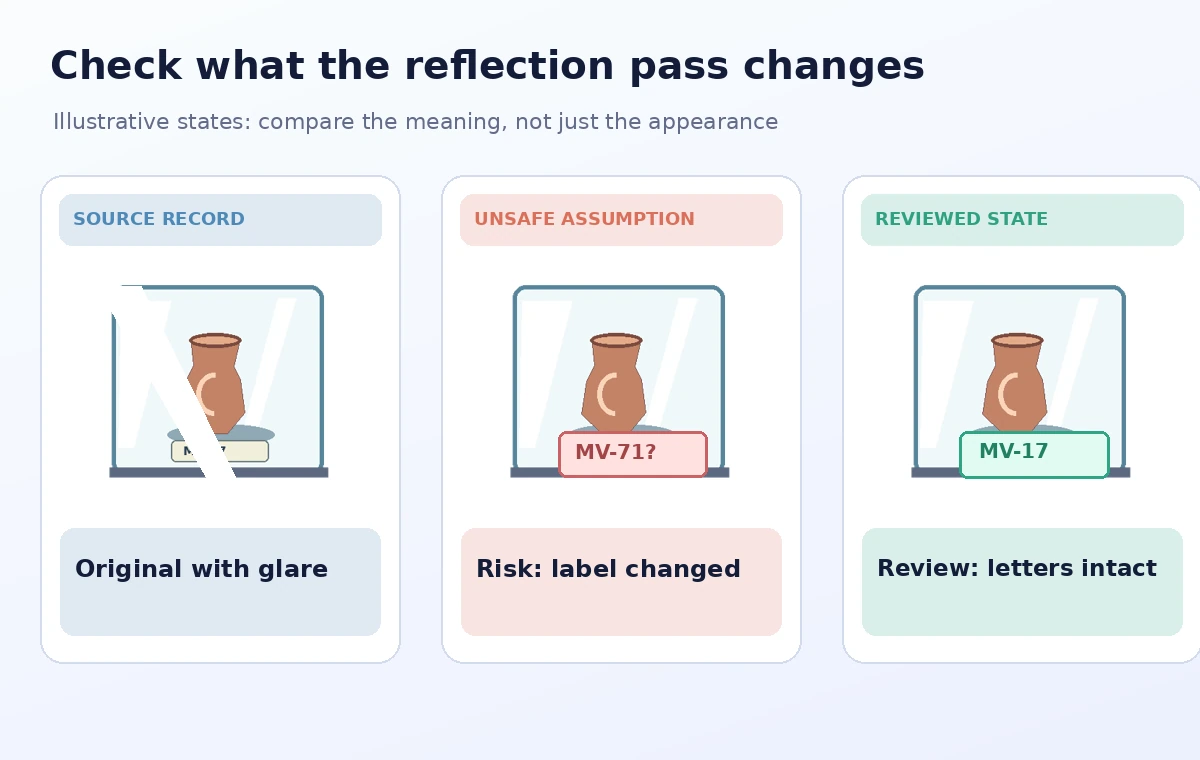
At each strength, examine the label and the vessel edge. An aggressive pass may clean glare while changing high-frequency strokes in tiny letters or flattening the texture of the ceramic. The illustrative comparison intentionally exaggerates a missing letter to show what to watch for; it is not a claim about Lightroom output. If no version preserves the source-critical detail, choose the original or a weaker edit.
Inspect the exact object areas that carry evidence
Zoom to a useful inspection scale and compare three regions side by side: the accession code, the rim where glass overlap is strongest, and the display base’s boundary. Check the shape and character sequence against the original master. A visual change that seems minor in a social post may matter in a catalog where one letter distinguishes objects. Do not type corrected letters into a generated image and present them as captured evidence.
The visual QA diagram uses numbered callouts on a stylized case: label, contour, and original reference. These are places a human should inspect, not measurements from a camera. If the first crop is unreadable in the source, acknowledge that the result cannot establish the true wording. Consult an approved object record to verify a caption, but never treat a generated image’s pixels as proof of a previously invisible inscription.
Choose quality settings appropriate to review and output
Adobe documents Preview, Standard, and Best quality choices for reflection removal in some Lightroom experiences. Preview is intended for quicker lower-resolution review; Best is the full-resolution option. Inspect details at the intended export size rather than judging from a small thumbnail. When critical text is small, a low-resolution preview cannot support a final decision about fidelity.
Also confirm the editing order. Adobe recommends dealing with reflection removal before many other effects, because subsequent AI operations may need updating. Avoid piling on texture, sharpening, or generative removal just to make a problematic label look more legible. If the photo will accompany an object database entry, the caption should identify the original object record and distinguish any editorially altered image from the archival photograph.
Review glass-edge artifacts and export metadata
Reflections may overlap the object’s boundary, causing apparent halos or duplicated edges when a model attempts to separate the layers. Inspect transitions around the case hinges, the vessel lip, and any fine wires or stands. Compare at the same crop and scale against the original. If the cleaned image changes an object’s silhouette, lower the effect or revert; visual tidiness is a secondary goal.
Export a derivative with a clear description of the edit and keep its link to the source master. If the organization requires a retouching log, record the tool and general settings without implying a measured restoration. Avoid removing reflections from a documentary image without disclosure when the reflected scene itself has evidentiary significance. The policy may differ between a promotional gallery image and a conservation record.
Combine Tools With Verification
Obtain a curator check before using the finished photograph
Ask an object specialist to inspect the derivative against the unedited capture. The specialist checks inscriptions, damage markers, material texture, and shape; the communications editor checks whether the caption accurately explains the image’s role. If they disagree about an altered detail, keep the original visible in the review package and resolve the discrepancy through the organization’s imaging policy.
A defensible release might use a reduced-glare version in a web exhibit while retaining the unmodified capture in the archive. It should not claim the AI recovered truth hidden beneath the reflection. Reflection Removal is an editing aid, not an authenticity detector. The successful outcome is a clearer picture that remains traceable to the same vessel and label, with uncertainties explicitly recorded.

How We Research
On November 4, 2026, we reviewed these named official references: Adobe — Remove window reflections in Lightroom; Adobe — Remove reflections in Lightroom Classic; Adobe — What is new in Lightroom Classic. We compared the documented interface and eligibility notes to the exact workflow described, paying attention to source scope, accuracy and human review boundaries. We drafted the example records, screenshots-as-diagrams, timings, and outputs solely as hypothetical educational material. We did not log into a paid account, process a real video or photograph, run code-review software, measure service results, or verify the invented organization. The visual comparisons describe possible editorial failure points, not observed vendor errors. Readers should check their plan, interface version, permissions, and authoritative source records before relying on the workflow.
Frequently Asked Questions
Not with guaranteed fidelity. It estimates a cleaner image, so compare critical labels and contours with the original source.
Adobe documents it under Remove > Distraction Removal in supported desktop versions, with an Amount control.
Adobe says Reflection Removal in Lightroom Classic supports raw and non-raw files, subject to compatible versions and hardware.
No. Retain an untouched master and release a clearly identified derivative under the institution’s imaging policy.
Do not invent text through editing. Verify wording from an approved object record and consider capturing a better original image.