
A community garden committee needs to organize soil delivery, bed repairs, tool checkout and volunteer orientation before planting day. Microsoft Planner Agent can help turn a brief into proposed tasks and plans, yet a generated schedule cannot know whether a volunteer agreed to lead a shift or whether spending was authorized. This hypothetical guide keeps suggested work separate from actual commitments and uses a human approval checkpoint before the board becomes operational.
Start with a bounded garden brief
Write down the event date, work area, approved budget ceiling, safety constraints, delivery windows and people authorized to approve purchases. Distinguish non-negotiable prerequisites from wish-list improvements. For example, inspecting damaged lumber may be required before volunteers rebuild a raised bed, while repainting a sign can wait until after planting. Attach the versioned brief to the planning discussion rather than relying on verbal assumptions.
State task authority explicitly: the committee chair approves overall priorities, the treasurer approves spending, and each volunteer accepts their own assignment. Leave blank fields for anyone who has not consented. A generated task named “Alex buys soil by Friday” looks actionable, but a name mentioned in meeting notes is not proof of acceptance. The source brief should make that distinction visible.
Check Planner Agent availability before choosing a workflow
Microsoft now describes Planner Agent in both shared basic and premium plans, with access and licensing depending on Microsoft Copilot entitlement. The official support page says creating tasks from goals is a premium capability, while Planner Agent chat is available in supported basic plans for Copilot-licensed users. Do not rely on old preview tutorials that say all agent features require premium. Check your actual tenant and plan type.
Open Planner in Teams, choose the relevant shared plan and inspect the Copilot or agent entry point available to that account. Microsoft documents draft task cards for reviewing proposed changes. If an interface cannot generate the desired plan, create the task structure manually rather than promising automation. Nothing in the feature description grants an AI assistant authority to accept a volunteer’s role or commit funds.
Generate tasks as proposals, not confirmed work
Prompt for a work breakdown grouped into site preparation, supplies, volunteer orientation and inspection. Ask the agent to flag missing inputs rather than guess an owner or a delivery time. Include explicit language: “Leave assignees blank unless the brief records acceptance. Mark purchasing items as awaiting treasurer approval.” The response is a planning draft. Review the proposed task cards before creating or saving them.
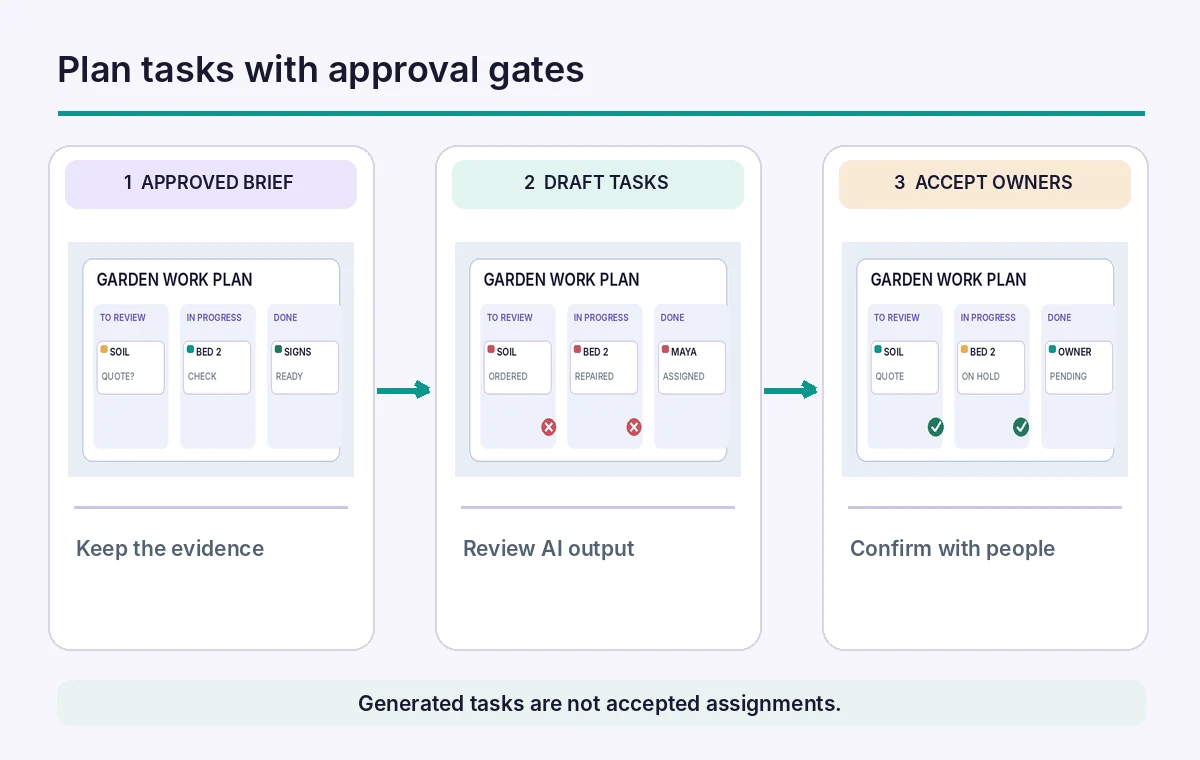
Keep deliverables concrete: “Measure the north bed” is distinct from “Repair the north bed,” and “Request a quote” is not “Order materials.” A goal such as “ready for planting day” is too broad to establish whether safety inspection happened. The process illustration shows approved inputs feeding a proposed board and then a human review gate, rather than a direct line from prompt to live assignments.
Map dependencies and safety holds explicitly
Inspect the proposed task order. Soil delivery cannot reliably be scheduled before access to the loading gate is confirmed. Volunteers should not use tools that a safety lead has tagged for inspection. Put an explicit blocker and an acceptance criterion on such work: inspection completed and recorded, not merely “AI says ready.” A visually full Kanban column does not establish the actual physical state of the site.
The comparison image contrasts an overconfident board with “soil ordered” and “bed repaired” against a reviewed board with “quote requested” and “inspection pending.” The statuses are fictional and not a measured Microsoft Planner error. They illustrate why a generated task must reflect documented evidence, not the most optimistic interpretation of a project brief.

Confirm ownership through a separate consent step
For every proposed assignment, contact the named volunteer or use the team’s established availability process. Record acceptance, the realistic date and any requested accommodation. An AI planning tool may help identify a gap in coverage, but should not assign a person based on their historic participation. A task without an owner can be legitimate when the team has not yet recruited for it.
Avoid loading private volunteer information into prompts unless the organization has authorized that processing. Use roles such as “safety lead pending” or “two volunteers needed.” Only record contact details in the approved access-controlled system. If a participant declines, move the task to an unassigned queue without labeling the person late. The distinction protects both planning accuracy and volunteer trust.
Keep spending approvals separate from execution
A prompt can split a supplies goal into estimate, approval, order, receipt and distribution. It must not merge those into one task whose completion implies that money has been spent appropriately. The treasurer needs to see item description, estimated quantity, approved maximum and the decision evidence. Do not treat a suggested cost or delivery date as a vendor quote.
Create a purchasing checkpoint before any order is placed. Track which tasks are informational and which produce an external commitment. The generated plan is useful for exposing missing steps, but actual purchases must follow the group’s policy and the supplier’s terms. A reviewer should be able to locate the specific approval record behind every “ordered” status.
Check plan changes and workload questions carefully
Microsoft support describes Planner Agent as able to answer questions about tasks and update certain task properties, with supported fields depending on the experience. Ask it to identify tasks due before opening day, then verify the list against the board and actual confirmations. “Most overloaded volunteer” may reflect only assigned items in Planner, not off-platform responsibilities. Do not use the model’s workload view as a fairness judgment.
When changing an important deadline, notify the owner and any dependent team. A revised task date cannot magically move a booked delivery truck. Keep a dated note on changes to milestone assumptions, particularly weather-dependent work. If you ask the agent for a status report, verify that “complete” means there is evidence of completion, not just a checked box inherited from an old board.
Run a walk-through before the plan goes live
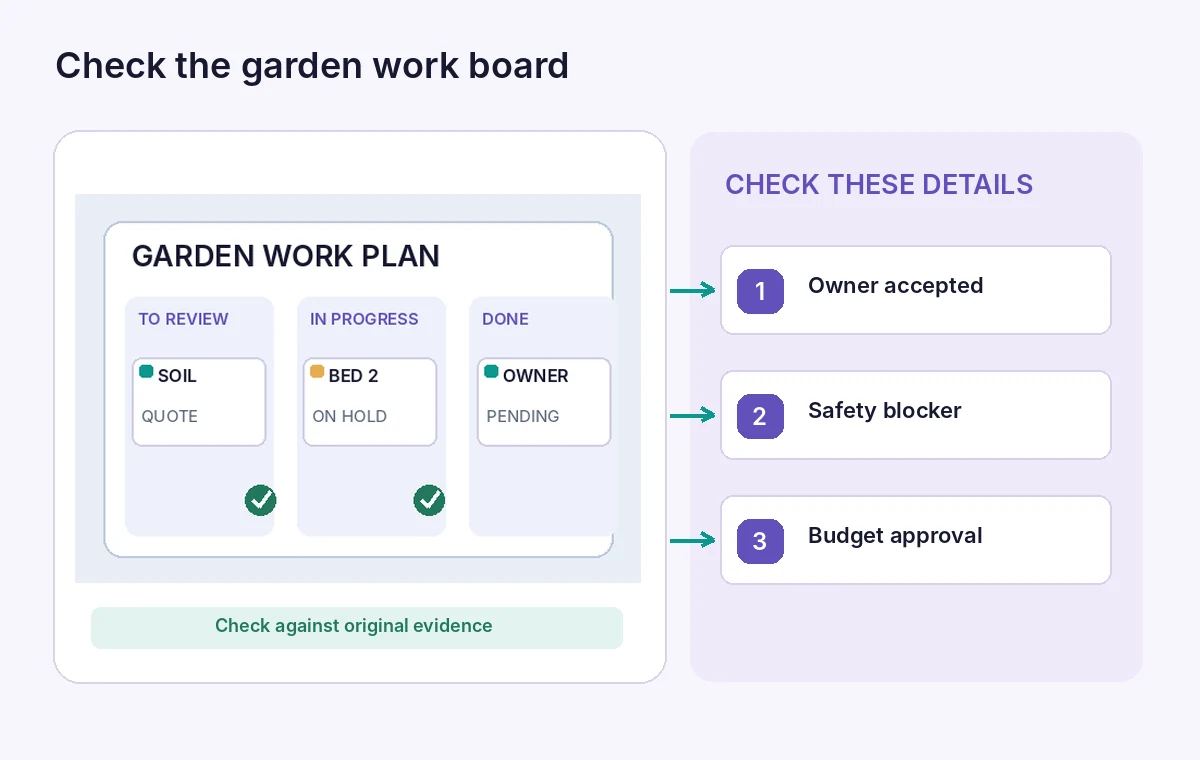
Use three scenario tests: the soil truck arrives early, a tool inspection fails, and a volunteer cannot attend. Can the team find the replacement owner, the safety hold and the person authorized to rebook delivery? The final quality illustration points to the precise fields for owner acceptance, blocker and purchase approval. These are editorial checks, not a screenshot of an actual Planner deployment.
Approve a versioned board after the chair reviews dependencies and volunteers confirm assignments. Archive the brief and decisions that support the tasks. For subsequent changes, update the board and notify affected people rather than silently rewriting the original approval record. The measure of success is a team that can act safely, not the number of tasks a model generated in one pass.
How We Research
We reviewed the following official documentation for feature behavior, terminology, access and stated limitations: Microsoft Support, What can you do with Planner Agent in Copilot?; Microsoft Support, Access Planner Agent; Microsoft Support, Chat with Planner Agent in basic plans. We compared the described menu paths and product constraints against the publisher guidance rather than inferring capabilities from generic AI marketing. The project scenario and the labeled comparison states are hypothetical educational examples; no real user account was accessed and no controlled performance or accuracy tests were performed. We did not obtain actual participant consent or verify real-world event, grant, budget or portrait records. The reader must check their current plan, the live publisher documentation and the authoritative operational source before using any generated output. This is an editorial process guide, not a measured product review.
Frequently Asked Questions
It can propose or create task content within authorized features; the organization still needs each volunteer to accept a role.
Microsoft documents experiences in both basic and premium shared plans, with Copilot licensing and feature differences. Check your tenant.
Microsoft identifies goal-driven task generation as a premium capability. Availability can vary with license and rollout.
No. Keep estimate, treasurer approval, order and receipt as separate stages with evidence.
Confirm dependencies, blocker status, owner acceptance, permission scope, due dates and any external financial commitment.