
A neighborhood arts group is exploring an inclusive printmaking workshop. Team members have proposed a quiet area, an accessible seating plan and multilingual handouts, but none of those services has yet been confirmed. Copilot in Microsoft Whiteboard can suggest ideas on sticky notes and help organize a brainstorm. It does not know whether the group has money, a ramp, an interpreter or approval to use a venue. The fictional workflow here protects that distinction by turning suggestions into questions and review assignments before anything is announced to the public.
Start with the decision boundary
Write a board heading that says ‘Exploring options — not confirmed’. List the known constraints, such as a proposed two-hour workshop and an estimated maximum group size, and label every estimate. Include a separate column for facts from the venue manager, ideas from attendees and questions that require investigation. Do not put real participant disability information or private contact details on a shared brainstorm. The board’s function is to help a team think; the official event listing and accessibility commitments should be maintained in approved documents after responsible staff verify them.
Check the workspace and Copilot access
Microsoft’s support page describes opening Copilot beside the Whiteboard toolbar, choosing Suggest and entering a prompt. Some organizations restrict Copilot or Whiteboard through tenant licensing, admin settings or managed accounts. Do not treat the feature as universally available or assert a current subscription price from an example page. Before inviting external collaborators, inspect board sharing and guest permissions; a person who can view a brainstorming board may see unapproved internal notes. Where AI is unavailable, a human facilitator can place sticky notes manually using the same evidence and approval categories.
Write a prompt with cautious language
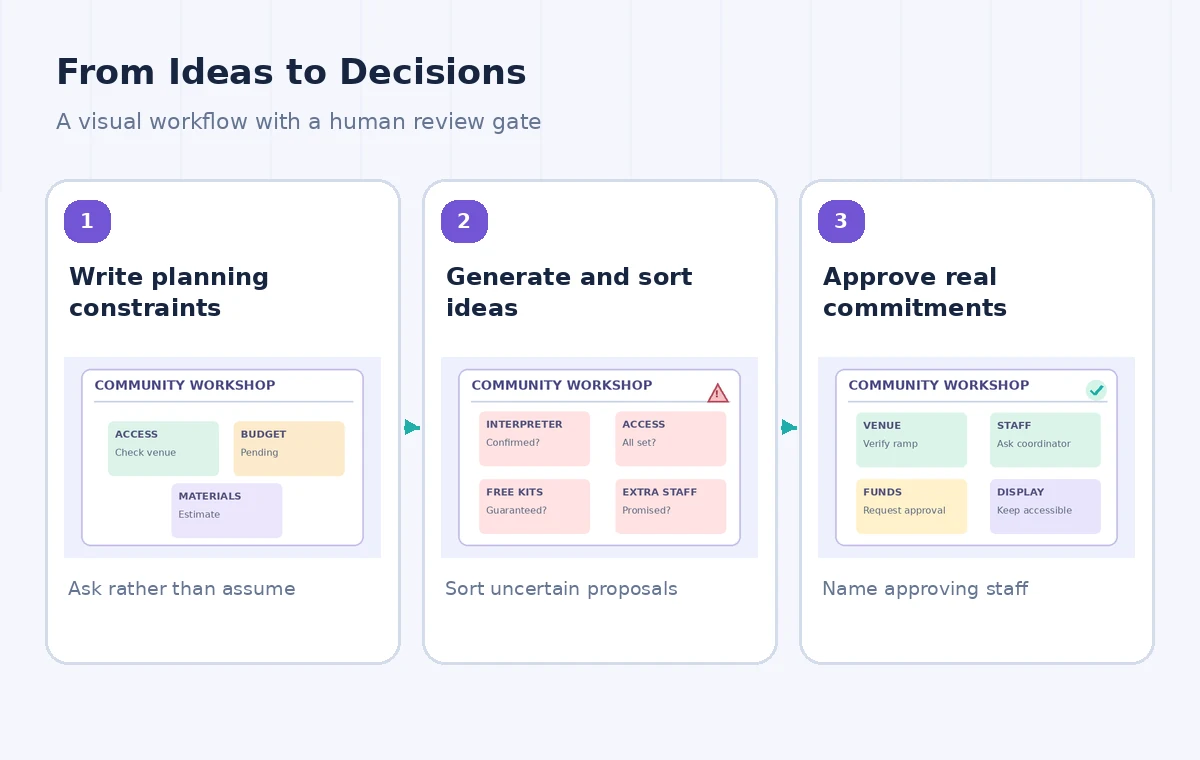
A useful request might be: ‘Suggest ways to help adults join a two-hour printmaking activity, including options for seated participation and low-sensory breaks; do not assume budget, staff, language services or venue access is confirmed.’ This gives the tool a real task without granting authority. Microsoft says Suggest can create a group of candidate sticky notes, and a user may generate more, dismiss ideas and insert the chosen notes into a board. Do not copy the assistant’s wording directly to invitations; a suggestion such as ‘provide a live interpreter’ is a question for the organizer, not a booked service.
Separate idea generation from insertion
Review the six or more candidate items as proposals. Remove items that would exclude participants, conflict with the workshop format or promise support that cannot be verified. When selecting Insert, keep the notes in a visibly labeled ‘Ideas for investigation’ area. An attractive cluster of notes might appear like an approved service list to a casual viewer; add a clear key distinguishing possible, verified and rejected options. Preserve any accessibility requests in the appropriate confidential planning channel rather than adding them to a public-facing board without consent.
Sort suggestions by evidence needed
Convert the AI list into three columns: ‘Can do with existing resources’, ‘Needs venue or staff confirmation’ and ‘Requires specialist input’. A suggestion to offer larger-print instructions may require only design and review; a claimed wheelchair route requires a physical accessibility check by someone who knows the facility. Adding a ‘quiet room’ may conflict with building occupancy or supervision rules. None of these can be answered by Whiteboard alone. Ask the relevant person a precise question and write a date and source next to the resulting human answer.
Audit the accessibility assumptions
Don’t frame inclusion as a single accessibility checkbox. Examine registration, entrance, the activity itself and departure separately. Test whether the plan relies on standing-only benches, inaccessible sinks, tiny handouts or an announcement delivered only in audio. Ask for input from community representatives through a consent-aware process, not by guessing participants’ needs from photos or comments. If the group lacks a required accommodation, report the constraint transparently and identify what would need to change before registration. Copilot-generated completeness is not the same as actual access.

Compare two boards without manufacturing approvals
For a conceptual before-and-after comparison, show the initial blank planning map, a collection of unvetted ideas and a reviewed list with unresolved items still flagged. Do not erase the ‘unconfirmed interpreter’ note just because a new note says ‘language-friendly welcome’. The comparison should preserve decision provenance: which person checked the venue, who approved print costs and who can authorize a public announcement. In the real board, create a short decision record in the team’s controlled workspace; Whiteboard notes alone may be edited and rearranged without enough context.
Keep constraints visible during collaboration
When a second organizer joins, begin with the board legend and the strongest unresolved risk, not the most colorful idea. Assign one owner to verify the room and another to confirm materials, but do not invent owners’ consent. Invite the group to challenge assumptions rather than vote on whether an invented service exists. Use the same decision standard for low-cost ideas and expensive accommodations. If a participant requests an alternative format, record the request according to the organization’s privacy policy rather than leaving sensitive personal information on a permanent digital whiteboard.

Export a clear, accessible handoff
A collage of sticky notes is not a complete action plan. After review, prepare a text summary with confirmed items, pending questions, responsible persons and links to approved source documents. Use large labels, a logical reading order and sufficient contrast if screenshots are shared. The text summary should stand alone for people who cannot interpret a spatial board. Show a version date in the handoff document and indicate the approval stage. A board may be a valuable visual meeting aid while still being unsuitable as the official source for public accessibility promises.
Respect the model’s documented limits
Microsoft’s Whiteboard FAQ explicitly says Copilot works from information written in its block and note content rather than external pages linked from the board. Do not assume the assistant has independently checked municipal accessibility standards or the current venue agreement. The tutorial does not claim a real public workshop was organized or that any participant confirmed an accommodation. Use Copilot Suggest for brainstorming, a trusted policy owner for commitments and an approved event listing for final information. A carefully facilitated manual board may be preferable if external validation is the difficult part.
How We Research
We consulted these named primary vendor sources: Microsoft Support — Discover new ideas with Copilot in Whiteboard; Microsoft Support — Frequently asked questions about Copilot in Whiteboard. We compared feature names, documented workflow entry points, stated eligibility, and cautionary limits before writing these directions. The source documentation is the factual basis; the example records, visuals and failure cases are editorial constructions. We did not log into a production workspace, interview users, test generated translations or summaries, calculate real financial results, or measure an AI accuracy rate. The illustrations are original conceptual drawings, not vendor screenshots. Teams must check current account permissions, terms, policies and source documents before applying any step in real work.
Frequently Asked Questions
It proposes ideas that can be reviewed and inserted as sticky notes; it does not reserve facilities or staff.
Microsoft’s FAQ says the tool is grounded in board note content rather than external linked-page content.
Only after the responsible organization confirms the service, location and resources.
Use ordinary Whiteboard sticky notes and the same human evidence and approval process.
Provide an accessible text summary of approved items, unresolved questions and responsible reviewers.