A neighborhood event needs a clear volunteer check-in process. Most volunteers can enter through the main gate, but a step-free route and a staff-assistance option must be represented just as clearly. Miro AI can create an editable diagram from a prompt, making it useful for exploring a flow before the event. It cannot inspect the venue or certify that a proposed route is accessible. The goal here is to build a reviewable process map with named decisions and recovery paths, not to let a polished flowchart turn guessed logistics into policy. The fictional map in the illustrations is instructional, not a venue plan.
Collect real process inputs before prompting
Gather the current arrival instructions, list of check-in roles, access arrangements, badge rules, and escalation contact. Ask the event coordinator which steps are mandatory and which are suggestions. Write a single-sentence scope: ‘Map how a registered volunteer reaches a staffed check-in point and gets a badge.’ Exclude speculative details such as an entrance opening time that nobody has confirmed. On a separate sheet, identify exceptions: no registration record, a person needing the step-free route, and a badge printer that stops working. These are process requirements, not optional decorations for the final diagram.
Use Create with AI to start an editable diagram
Miro’s current help places diagram generation under Create with AI and a Diagrams or mindmap format. Describe the inputs and desired flow in ordinary language, then let the tool draft a structure on the board. Miro describes the result as an editable diagram, which matters because an initial layout may be wrong even if it looks balanced. Do not label any generated node ‘approved’ before someone checks it. If the account uses an updated interface, consult the live Miro help rather than relying on a fixed button position. AI availability and usage allowances can depend on workspace settings.
Write the branch prompt with explicit conditions
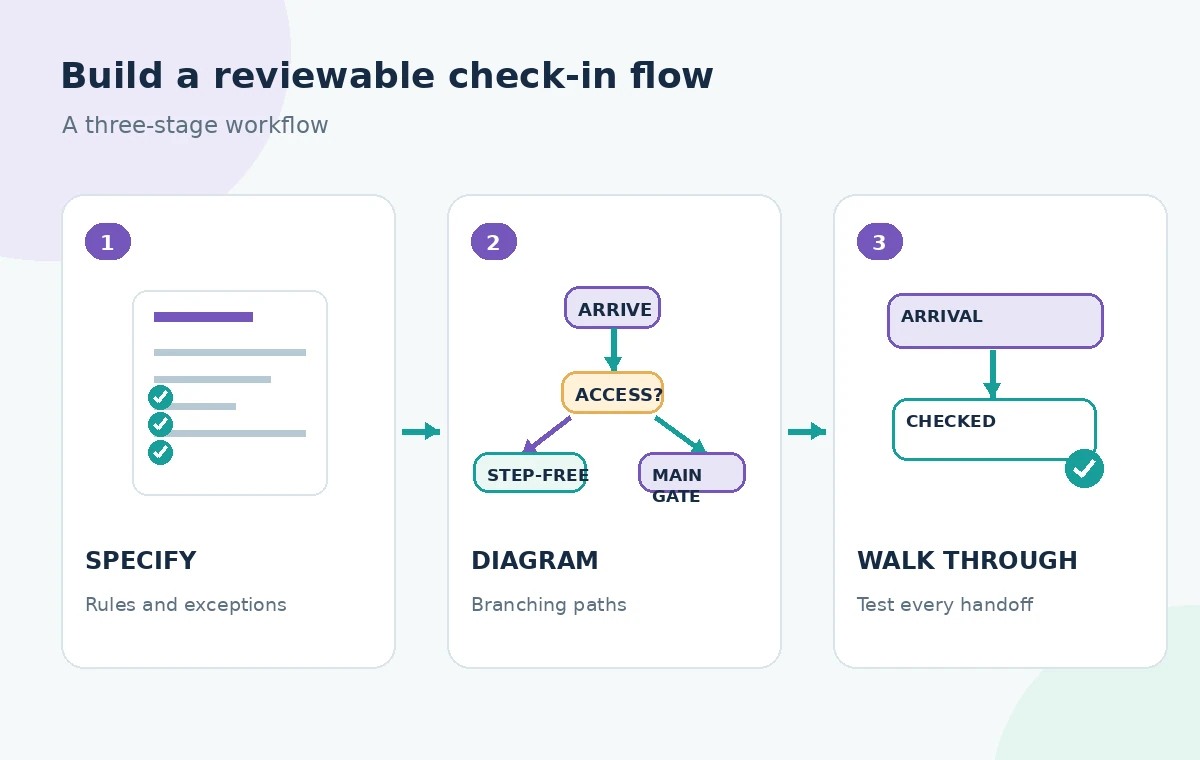
A useful prompt lists decisions: ‘Volunteer arrives; ask whether the main gate works for them; provide a step-free alternative when needed; confirm registration; if the name is missing, refer to the desk lead; issue badge only after confirmation.’ Specify that each decision must have Yes and No paths. This gives the model a better chance of producing a genuine branching process instead of a vertical list. Ask for short node labels readable by a volunteer looking at a board. Treat prompts as draft specifications, then compare the result with the source policy line by line.
Check the accessibility branch as a real path
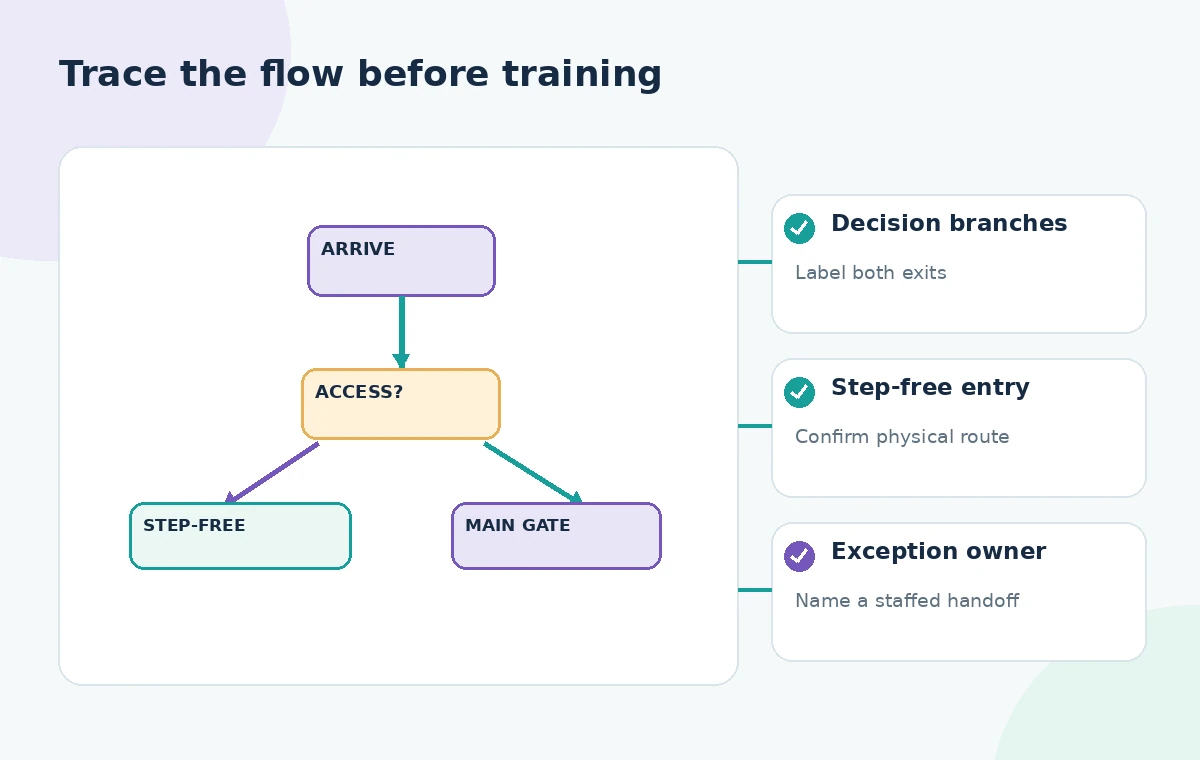
A diagram can include a box titled ‘Accessible Entrance’ and still fail to show how the volunteer reaches check-in. Trace the path from arrival through signage, entry, assistance, and the same badge outcome as the main route. Verify the route, door access, staffing, and any time-dependent restrictions with the venue. Do not assume that a wheelchair symbol proves compliance or that an AI-suggested ramp exists. If the step-free entrance has a different desk or callback arrangement, name the handoff and responsible person. Put unresolved physical details in a clearly marked review note outside the approved flow.
Add operational exceptions without making a maze
Every branch should reach a legitimate endpoint or a named escalation, not simply vanish. For an absent registration record, the check-in volunteer should refer the person to the desk lead rather than invent an eligibility decision. If a badge printer fails, the backup process might require a paper log, but only if staff has approved one. Keep exceptional paths visually grouped so readers can understand normal service and recoverable failures. A clean chart that hides exceptions is less useful than a slightly larger map with explicit handling for the cases volunteers will actually see.
Revise nodes and connections in place
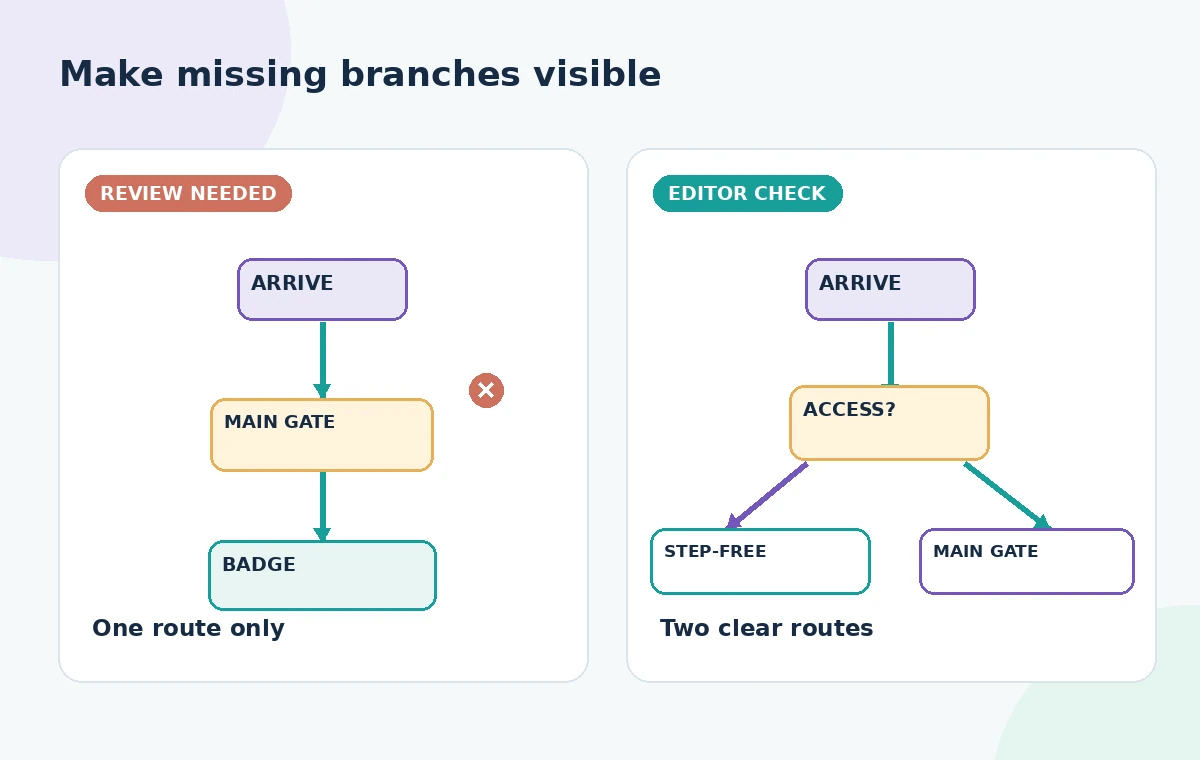
Miro documents iterative prompts for editing a diagram after creation, and the generated objects are editable. Use follow-up instructions to add missing decisions or shorten overlong labels, then manually inspect connection direction and arrow endpoints. A label like ‘Need help?’ without a clear answer on both exits invites confusion. Watch for duplicate nodes that describe the same action in different words. Use consistent verbs, such as ‘confirm registration’ and ‘issue badge,’ and distinguish actions from questions with shapes or iconography. The diagrams here illustrate process logic, not an export from a tested Miro board.
Conduct a walk-through with two realistic scenarios
Choose a routine volunteer with a confirmed registration and another who needs the step-free route and cannot find their name in the list. Have someone who did not design the chart trace both paths from arrival to a staffed resolution. Record where the reader hesitates or reaches an undefined outcome. This rehearsal tests process clarity; it does not establish accessibility compliance by itself. If the chart says ‘ask staff,’ identify which staff role and where to reach them. A workflow must be executable when the person reading it is busy, uncertain, or new.
Keep sensitive details off the public board
Do not paste a live roster, personal accommodation details, phone numbers, or confidential venue plans into a general-purpose diagram prompt without permission. Use generic roles and synthetic examples in the draft. Before sharing the board, inspect view and edit permissions, comments, and linked documents. An accessible route may be important to volunteers, but the supporting personal information about who requested it is not. Miro AI uses models to process requested content, so your team’s data policies should determine what can be supplied. Share an approved public-facing diagram separately from operational details.
Freeze one approved operating version
A final diagram needs a date, an owner, and a change process even when the AI-drawn flow is editable. Ask the coordinator and accessibility lead to sign off on routes and escalation steps, and have check-in staff confirm that the labels match what is on site. Make a read-only version for training and retain the editable board as the working master. If the venue changes, update the source instructions first and redraw only the affected branches. Miro helps make logic visible; it does not grant physical access, staff capacity, or authorization to promise a service.
How We Research
To prepare this guide, we reviewed the official product documentation: Miro AI: diagrams and mindmaps and Miro: Create with AI. We compared the explicitly documented feature entry points, supported tasks, limitations and configuration requirements with the decisions in the hypothetical scenario. We did not access a customer account, upload any of the described documents, run prompts, obtain actual generated outputs or measure performance. The visuals are custom instructional diagrams, not software screenshots or evidence of live tests. Any scenario-specific people, approvals, files, vendor availability and outcomes are illustrative. Check the current documentation, account entitlements and your organization’s policies before acting on the workflow.
Frequently Asked Questions
Yes. Miro documents generating and refining diagram structures on the board; reviewers can still edit the nodes and links.
No. The prompt can describe a branch, but only venue staff and an appropriate physical accessibility review can confirm the real route.
Yes. Explicit Yes and No destinations make the chart easier to audit and reduce the risk of hidden dead ends.
Only if your organization permits the data use. For process design, generic role labels and fictional records are usually sufficient.
Show a handoff to a named staff role and the approved verification process; do not let the diagram make up an admission rule.