
An event flyer may have a beautiful photograph with a person standing directly behind the headline area. Canva Magic Grab lets an editor select an object, move it independently, and retain the surrounding background. This article uses a fictional cyclist poster to separate selection, repositioning, repair, and final copy proof. Its useful result is a mobile-safe layout and a checklist of visual defects. This is not a tutorial for removing all backgrounds or for making a photographic composite appear documentary.
Decide whether you need Magic Grab, Eraser, or Background Remover
Before editing, define the change in one sentence: move the cyclist from the middle of the scene to the right so the headline is readable on the left. Canva’s Magic Grab help distinguishes that action from Background Remover, which removes a background, and Magic Eraser, which deletes objects. If the subject should remain in its original place, you do not need a relocation tool. If the destination is a cutout on a new backdrop, a different tool may make more sense. Keep a crop of the approved photograph so you can judge whether the AI repair changes important scene information. Do not move a person in imagery presented as event evidence.
Check file eligibility and work from a duplicate
The official Canva steps indicate that Magic Grab does not support photos placed in frames or grids. Move the image into a supported editable context if necessary and duplicate the original design first. Confirm that you own or can edit the photo and that subjects have given any consent required for the intended use. Avoid placing internal event deadlines and factual ticket details inside the raster photo; use separate editable text. Establish the final poster shape, including an alternate mobile crop, before moving anything. A subject that looks balanced in a wide image can overlap a headline after a narrow social export.

Select only the intended subject
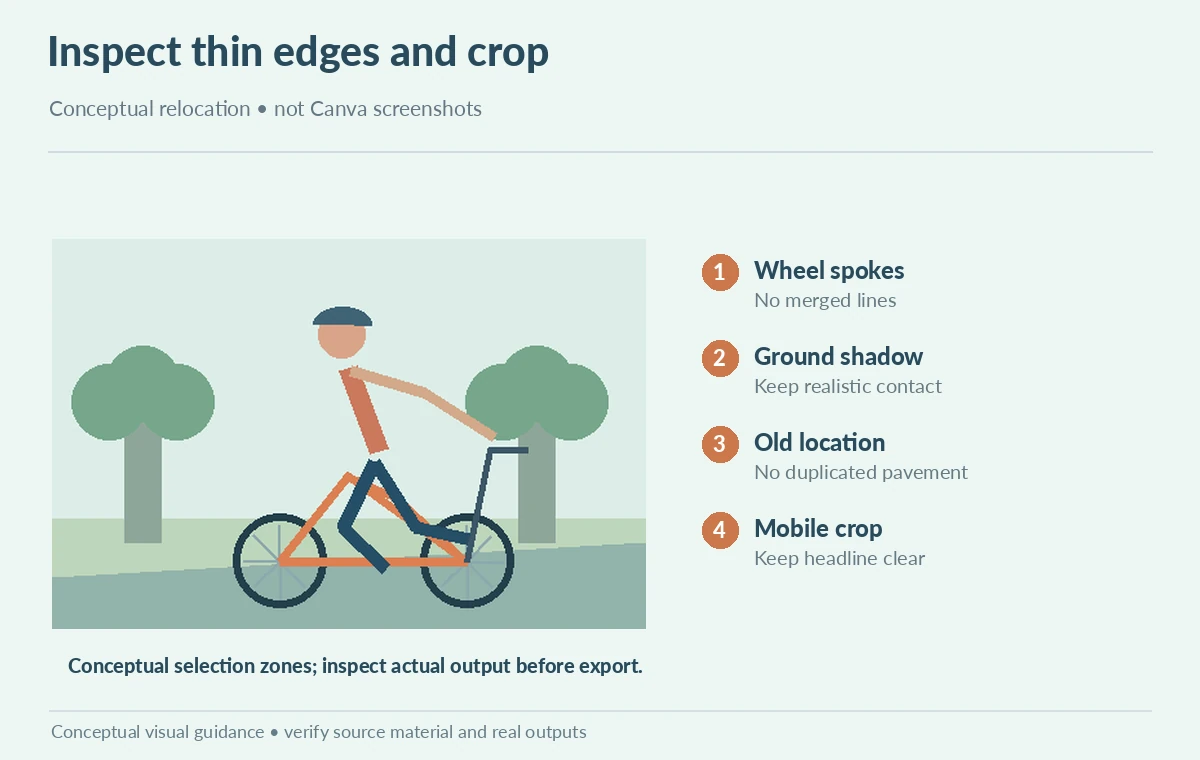
Use Edit, Tools, See all, then Magic Grab as Canva describes. Choose the click-to-select or Brush option and carefully cover the cyclist, including bicycle wheels and accessories. Exclude the background road, signposts and shadows that must remain part of the scene. Small disconnected objects are easy to miss; confirm whether spokes, handlebars and hair belong to the intended movable selection. Do not assume every selected object will extract without visible artifacts. The diagram highlights edges where selection is particularly sensitive, using editorial illustrations rather than simulated Canva screenshots.
Move the cutout while preserving realistic depth
After selecting Grab, reposition the subject to open negative space for the headline. Keep wheels above the same implied ground plane and match the source scale; an oversized cyclist can make the perspective implausible. Examine the patch left behind. The algorithm may fill the old subject area, but a smooth replacement can accidentally erase a road marking or duplicate a shadow. Compare the moved version with the untouched source. If the subject needs a new ground shadow, rebuild it deliberately and avoid asserting that the tool guaranteed correct lighting. Do not use a visually cleaner composition to misrepresent where a person stood.

Set readable text and mobile-safe zones
Put the headline, date, location and CTA on live Canva text layers, not inside AI-rendered pixels. Use the left-side negative space created by the move and keep a margin from the crop edge. Check the event name and schedule against the approved brief. Test a narrow phone crop and a full-size poster view, looking for the cyclist entering the headline block. Dark text over bright sky may work in one variant and fail when the background changes; add a deliberate solid contrast region if needed. Use the illustrated before, moved and crop-safe panels as a process map rather than a claim about Canva output quality.
Review object edges and the reconstructed background
Inspect the selection at 100%: spokes can look fused, helmet straps may be cut off, and patches may contain repeating bricks or impossible road lines. A natural-looking thumbnail does not excuse a visibly damaged bike at full size. If the effect is poor, Canva documents undo and reset for returning to the original state. Make a smaller adjustment or choose a more suitable source photograph instead of repeatedly editing degraded pixels. Record whether the final design uses a manipulated photo. Do not attribute fictional cyclist illustrations to Canva generation or present them as product UI captures. For a real campaign, draft the message before moving the subject. A useful two-line headline should fit both a wide landscape version and the narrow story format without covering the handlebars. Export both as proof files and compare them side by side with the untouched photograph. When the right-side placement collides with a required sponsor mark, do not keep pushing the cyclist toward the edge; instead choose a new source crop or shorten the headline. Record the final subject position, text safe area and any repaired pavement in the design notes so the next editor understands what was changed.
Handoff a poster another editor can actually update
Keep the original photo, the edited design, editable typography, alt text, and an approval log. Export both the intended social image and print proof only after checking crop, copy and rights. A collaborator should be able to change the date without rerunning AI. Track the location of the saved original so a future reviewer can compare the moved subject or undo the adjustment. The final checklist asks whether the subject silhouette, ground contact, old-location fill, text contrast and mobile crop are acceptable. Treat approval as a human decision, never an automatic quality score.
How We Research
On October 28, 2026 we used Canva’s official Magic Grab help page for selection methods, frame and grid limitations, differences from Eraser and Background Remover, and reset behavior. We did not operate an account or measure edge quality. The cyclist, the poster layout, and the check zones are original editorial examples rather than Canva screenshots.
Frequently Asked Questions
No. Magic Grab lets you reposition the selected object while retaining the original background.
Canva’s help says Magic Grab does not support images in frames or grids.
Not guaranteed. Inspect thin structures, straps and shadows at full resolution.
No. Maintain headline, venue and dates as separate editable layers and proof them against the brief.
Canva documents undo or Magic Grab reset in the same editing session; retain a separate source copy too.