
A neighborhood workshop organizer wants a poster that can be updated whenever the venue or date changes. A beautiful flattened image is less useful than a design with editable headings, illustration, and event details. Adobe Express Generate template creates a starting point from a text description, but the organizer remains responsible for verifying every word and proofing the layout. Here is a source-first workflow using an imaginary “Night Garden Workshop” event and an annotated final handoff.
Write a factual brief that no generator should invent
Collect the event name, organizer, approved venue, start and end times, ticket route, and any accessibility notes in one verified document. Use a fictional workshop in this example; do not copy the sample date into a real campaign. Define visual tone separately: midnight-blue background, botanical shapes, luminous gold lettering, and sufficient text area. Keep addresses and RSVP URLs outside the prompt if a public system should not receive them. The design system is allowed to suggest colors and arrangements, not to create facts. Decide the required sizes for a printable flyer and a phone story before you compare generated templates.
Follow the documented Generate template route
Adobe’s April 30, 2026 Express guide describes opening the plus icon, choosing Quick actions, Generative AI, and Generate template. Enter a descriptive design prompt, select Generate, choose a candidate, and then Edit template. These steps are the confirmed workflow, not a promise about your account’s exact interface or entitlements. If the control is missing, check the current product page and relevant plan access instead of assuming a hidden model or a previously saved mockup. Keep the selected concept for comparison while you revise its live editable content. The drawings in this article represent design principles rather than screen captures.
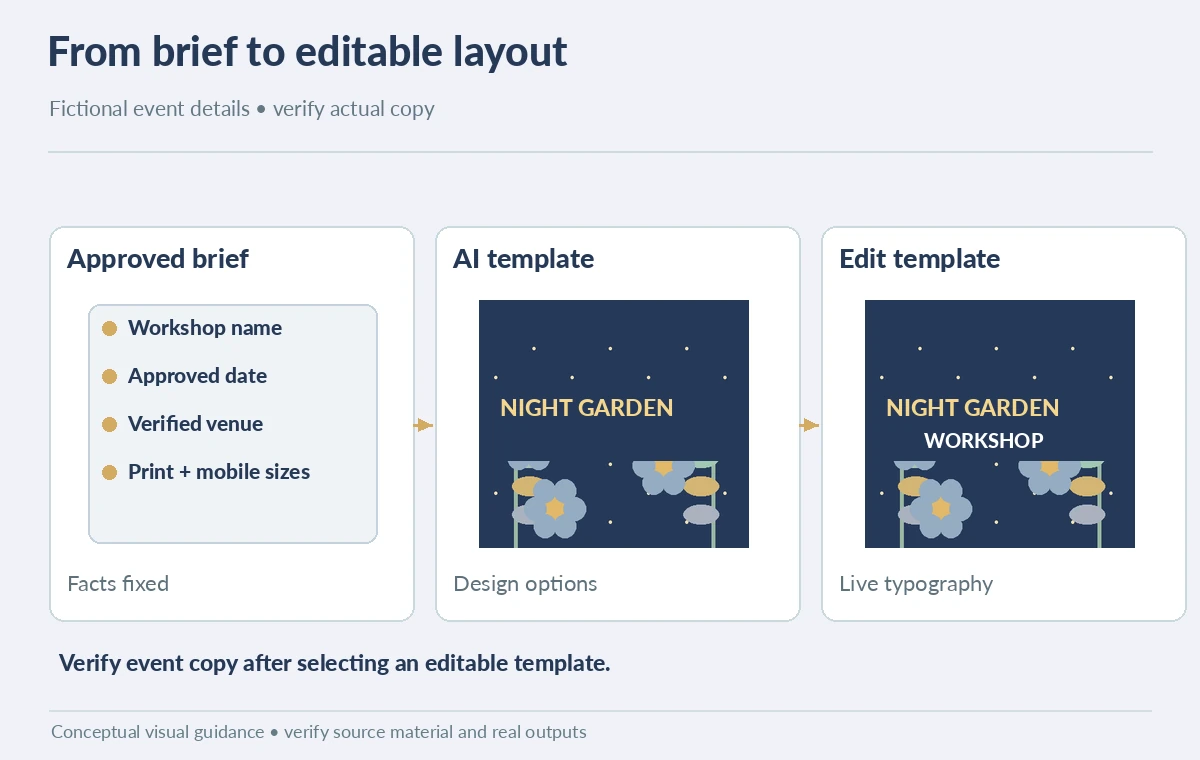
Choose the template by editable hierarchy, not beauty
Inspect whether the generated layout offers a clear title, secondary date and time line, location area, and simple CTA hierarchy. A textured illustration may look beautiful but leave no room for the actual venue name. Compare two candidates using criteria that a reviewer can see: live text separability, contrast, amount of empty space, usable crop and consistency with the approved event brief. Do not invent percentage scores or call one candidate “tested best” without an actual study. Favor a template whose text can be revised easily over a visually dense scene that needs to be rebuilt. The accompanying comparison highlights decisions, not model performance.
Replace every generated fact with verified copy
After selecting Edit template, inspect each text box. Re-type the approved workshop title, time, venue and booking direction. Check punctuation and formats for the US audience and leave enough room for longer venue names. Do not put a generated QR code or invented ticket URL on the export. If a graphic contains baked-in pseudo-lettering, hide or replace it with properly editable text rather than hoping it reads correctly. Test that every text element remains editable after duplicating the design, and keep its exact source in the approval brief. Any claim about a discount or sponsor needs explicit authorization.

Proof type, crop and accessibility at two sizes
Zoom out to a typical phone-preview width and then inspect at full exported size. Check contrast of small details, minimum readable type, and clear action language. Reposition botanical art away from letters; decorative leaves should not cover the date. For print, ask the chosen vendor for bleed, color and resolution specifications rather than presuming an AI-generated layout meets them. For digital sharing, add accurate alt text describing the workshop flyer. The crop-safe diagram distinguishes the composition boundary from the zone reserved for legible information. Verify both variants after any last-minute date edit.
Review rights, branding and optional AI design elements
Treat the template as a draft. Identify any recognizable logo, stock photo, or symbol that requires source-rights review. A generic botanical illustration can carry accidental lettering or trademark-like details; inspect those before use. If the organizer uses brand colors, compare the generated palette with its official swatches and correct them. Do not assert that an editable template automatically has exclusive copyright or guarantees print approval. Store the AI-generated candidate, revised editable artwork, and final export together so another editor can see what was changed. If the layout is for a public institution, follow its disclosure and content-approval policy. Use a simple approval worksheet with one row per factual field. The title row names the approved source; the schedule row includes time zone and whether the venue opens before the start; the location row lists the exact building spelling; and the booking row contains a link that has been opened and checked by the organizer. Give the layout reviewer a separate row for contrast and crop margins. This separation matters: a reviewer can approve the illustration while correctly rejecting an outdated ticket link. Archive both decisions so final exports do not inherit a visually polished but factually wrong template.
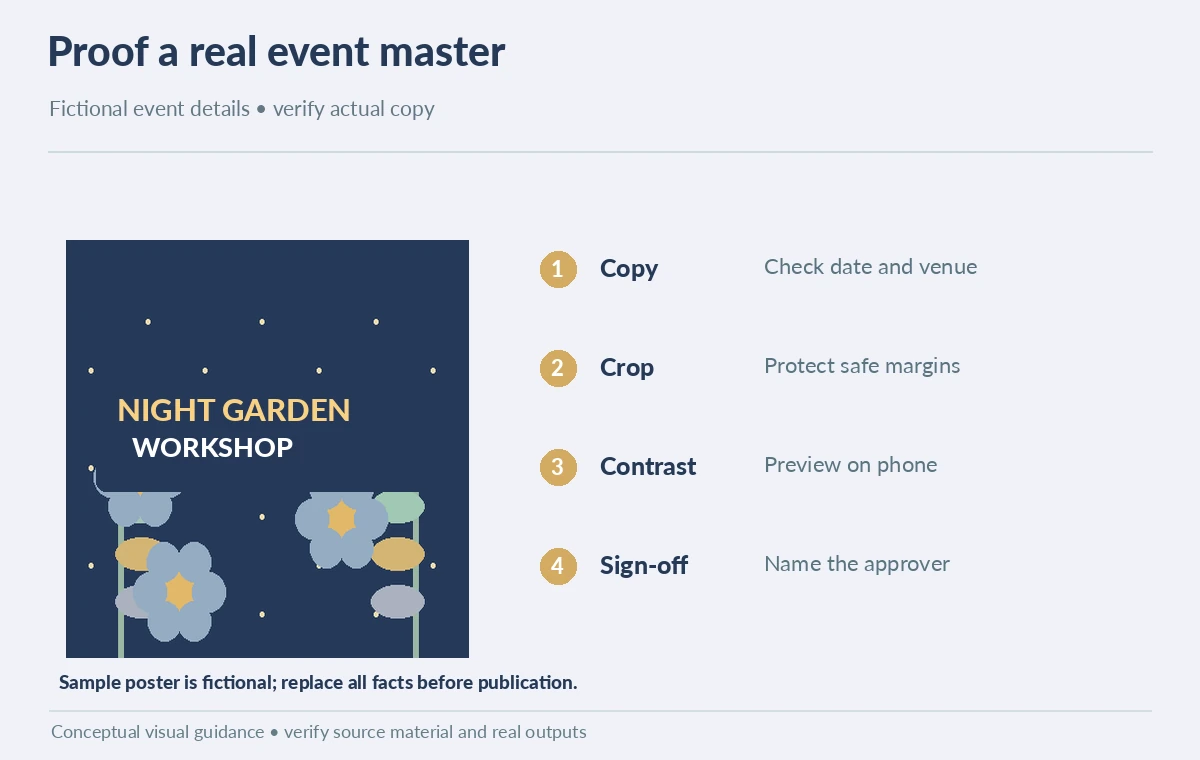
Package one approved master with adaptable copies
Ask a named event owner to approve the exact headline, date, ticket URL and final poster proof. Keep an editable master rather than handing over only JPG or PDF output. Export the requested print format and a separate phone crop, then reopen both outputs to check for lost fonts or clipped text. Mark the job complete only when the event information matches the verified brief, the mobile version remains legible, and every image has appropriate rights clearance. An approval table listing copy, contrast, margins, source rights and file location provides more lasting value than another round of random AI layout variants.
How We Research
On October 28, 2026 we reviewed Adobe Express’s official Generate template guide, updated April 30, 2026, for the documented entry points and edit-template workflow. The workshop event, visual mockups, proof criteria and handoff process are editorial examples. We did not run Adobe Express, benchmark templates, or verify any account’s specific access.
Frequently Asked Questions
Adobe describes selecting a result and choosing Edit template; verify the specific layers after opening it.
No. Copy factual event details only from the approved brief.
No. Check bleed, legibility, colors and your print vendor’s specifications.
Cover or remove the pseudo-text and rebuild it as editable text.
An approved editable master, final print and social exports, and a short proof record.