
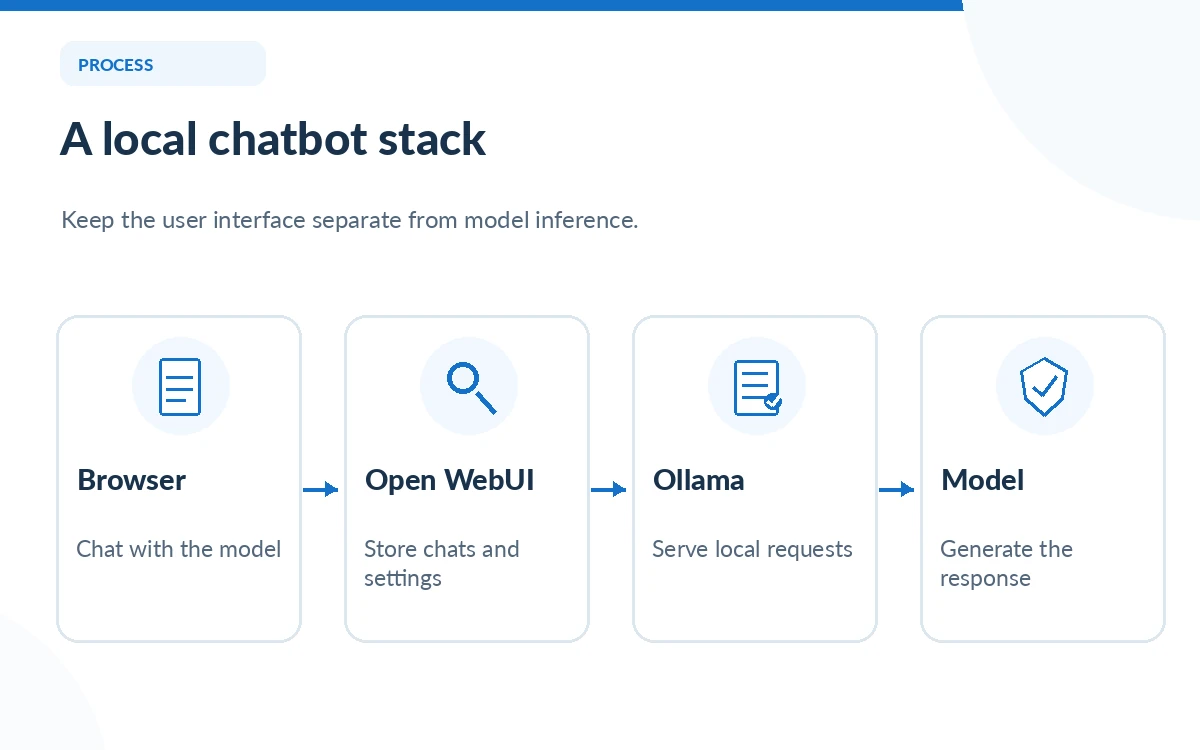
A local AI chatbot is a conversation interface whose model can run on a computer you control instead of sending every prompt to a hosted model endpoint. For a usable desktop setup, you need two separate pieces: a model server that loads weights and generates text, and a chat interface that manages the conversation. Ollama can provide the first piece; Open WebUI can provide the second.
This guide explains that architecture and the decisions required to make it work on a typical Windows, macOS or Linux computer. It does not promise a particular response speed, hardware footprint or perfect privacy. Performance depends on the model, memory and acceleration available, while optional cloud integrations can change where your data goes.
Understand the two-service architecture
Ollama downloads and runs compatible models and exposes a local model API, conventionally using port 11434. Open WebUI is the browser application that connects to an Ollama-compatible backend and displays a chat UI, saved conversations and optional tools. Neither component should be confused with the underlying language model weights. A connection to a remote cloud provider inside Open WebUI is possible, but it changes the privacy assumptions of a local-only setup.
Draw the data path before installing anything: browser to Open WebUI, Open WebUI backend to Ollama, Ollama to the model on your machine. If web search, external embeddings or third-party API connections are enabled, add each destination to that path. Your design goal for an offline chatbot is to keep every required inference component reachable without routing prompts to an outside service.
Choose the right installation approach
The Open WebUI documentation recommends Docker for many users and describes Python and other deployment options. Docker keeps the UI service separate and supports persistent storage; it also introduces container networking that beginners should understand. If you already run Ollama natively, the separate-container approach is understandable because each process can be updated and troubleshot independently.
Before installation, confirm that Docker is supported on your operating system and that enough disk space exists for the selected model plus the UI image. Back up existing data before upgrading. Open WebUI also documents a bundled Ollama image, but the location of model files and persistent volumes will differ. Choose one architecture and follow the corresponding official guide rather than mixing commands from several versions.
Install Ollama and select one small starting model
Use Ollama’s official installation and library documentation for your operating system. Start with one compact text model that fits your available memory and intended language; compatibility, memory use and hardware acceleration differ by model. Download it from a trusted model listing and record the model identifier, source, license and version. Avoid relying on a model name you saw in an old tutorial without checking whether it is still available.
In a terminal, confirm Ollama is running and that the model can answer a short harmless prompt before adding a second service. That isolates model faults from UI faults. For a limited machine, reduce model size or context length rather than assuming an internet issue. Local models may produce fluent but incorrect answers, so do not use this connection test as a measure of factual accuracy.
Launch Open WebUI with persistent data
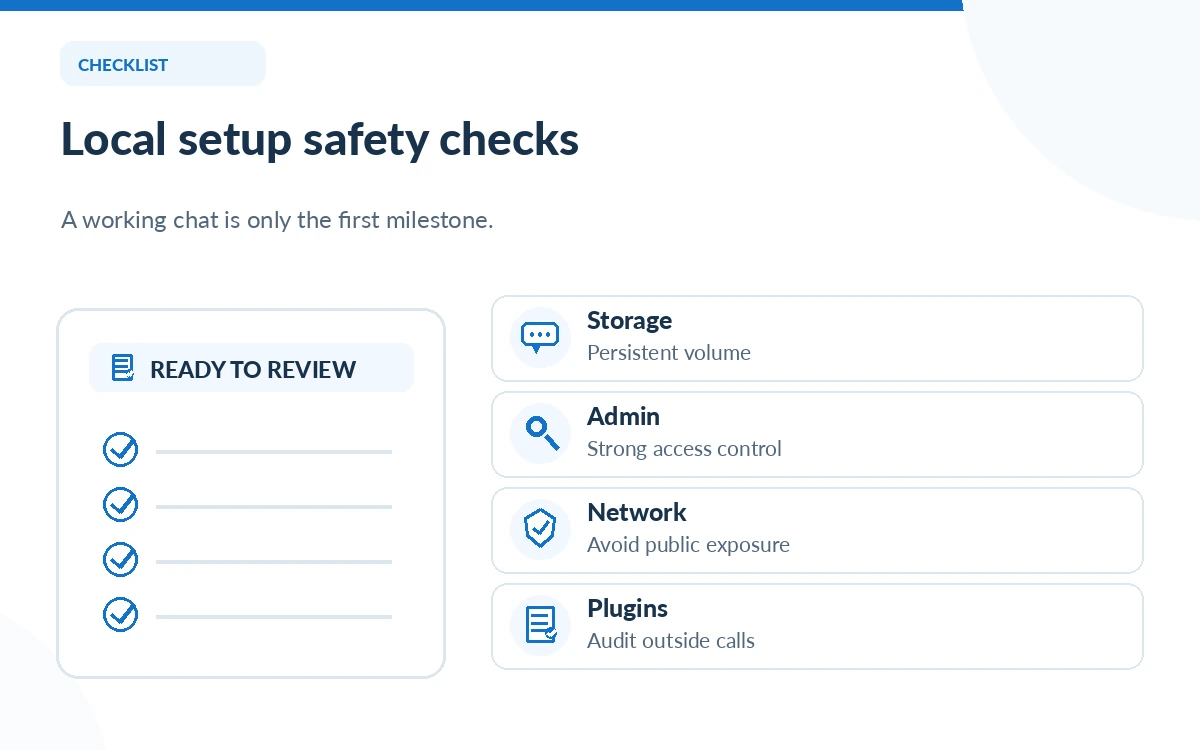
Follow Open WebUI’s current Quick Start instructions. The official Docker path publishes a local browser port, assigns a persistent volume for chat and account data, and recommends a fixed WEBUI_SECRET_KEY. Generate a fresh random key on your own machine instead of using a copied example string. The first account is an administrator; protect its password and avoid turning on unrestricted sign-ups for a single-user installation.
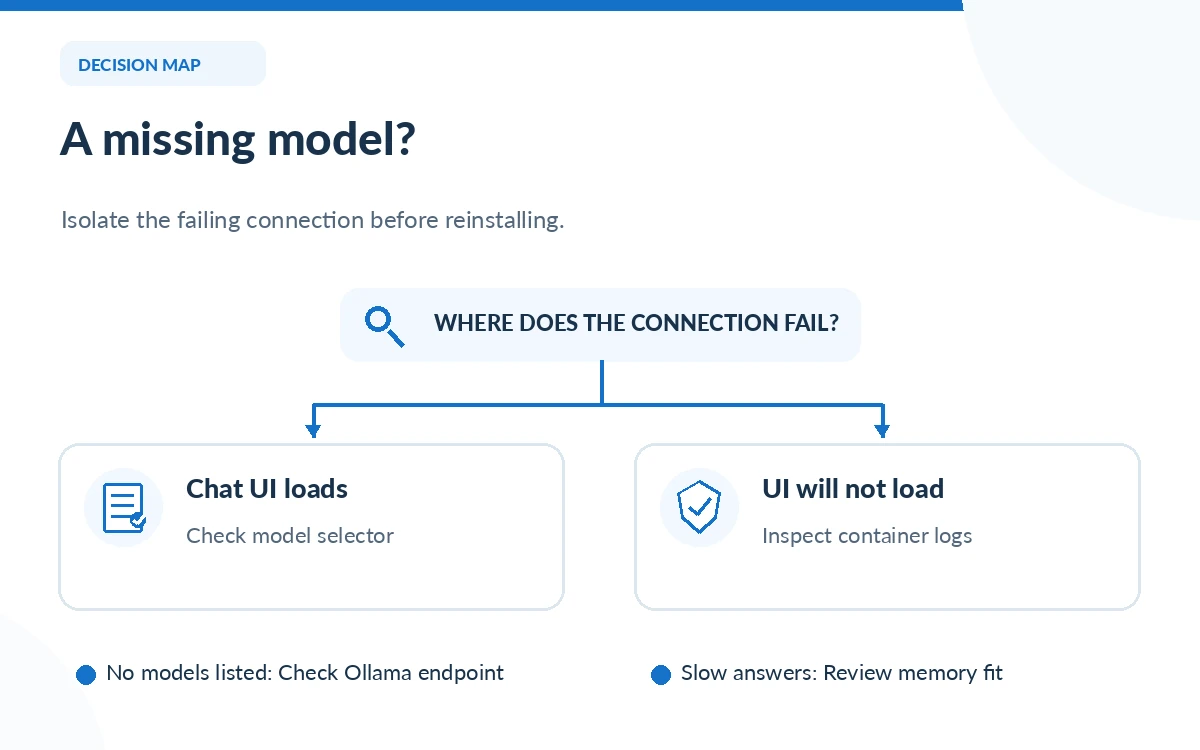
After starting the service, open the documented local URL—commonly localhost:3000 for the Docker example—and complete the initial admin setup. If the page does not load, inspect the container’s startup logs and check whether the chosen host port is in use. Persistent volume mapping is important: recreating a disposable container without a volume can lose conversations and settings.
Connect the UI to the Ollama model endpoint
Open WebUI’s provider guide directs admins to Settings, Admin and Connections to inspect the Ollama connection. When Ollama runs on the host while the UI runs in Docker, the documented address is often http://host.docker.internal:11434. Inside a container, localhost refers to the container itself, not automatically to your laptop host. The connection should appear before model choices can populate.
If the model list is blank, verify Ollama independently, check the connection URL and inspect Open WebUI logs. Official troubleshooting notes explain that address resolution and server binding are common causes. Do not expose Ollama to every network interface simply to make a local demo work; changing binding or firewall rules should be a deliberate decision based on your operating system and network boundaries.
Test conversation behavior, limits and documents
Use a small, repeatable acceptance test: ask the model to summarize a short non-sensitive paragraph, then ask it to identify a contradiction you planted in that paragraph. Check whether the response tracks the input rather than guessing. If you later enable document retrieval, confirm whether a separate embedding model or parsing service is used and where the files and vectors are stored.
Test latency, available memory, model switching and chat history on your actual hardware. Record what the setup could and could not do rather than comparing it to cloud services based on anecdotes. Tool plugins, web search and external providers must be reviewed separately; enabling them can make the deployment no longer fully offline.
Troubleshoot without weakening security
A blank screen usually indicates a UI startup or port issue. A missing model list typically points to an Ollama endpoint problem. Extremely slow answers may indicate that model weights or context are larger than your device handles comfortably. Logs from each component are more useful than repeatedly reinstalling everything. Restart only after you have captured the message that identifies the failing component.
Keep the interface private to your machine while experimenting. When adding other users, use authenticated access, managed network routes, backups and a clear update policy. An unpatched web interface on a public IP creates risks even if the model itself is local. The shortest successful setup is not automatically the safest production deployment.
How We Research
We used the official Open WebUI Quick Start, Ollama connection guide, connection troubleshooting reference and Ollama project site, reviewed October 26, 2026. These are setup instructions and architectural recommendations, not evidence that we installed or benchmarked particular hardware. Check commands against the current official pages for your operating system.
Frequently Asked Questions
Inference can work offline when every required model and component is installed locally and optional remote services are disabled. Downloads and updates still require connectivity.
Not necessarily; CPU operation is possible for compatible small models, but response speed and supported model sizes depend on memory and hardware.
Check whether Ollama is running and whether the backend can reach its endpoint. Docker uses a different network context from your browser.
The standard UI does not provide an independent model by itself. Connect Ollama or another supported provider, or choose the documented bundled variant.
No. Multi-user operation needs deliberate authentication, backups, network exposure controls, update management and policy for model and tool integrations.