
A small gallery wants a brief orientation video for weekend greeters. Staff have approved a visitor guide, a floor plan, and a temporary closure notice, but they do not want an AI presenter to invent a ramp or imply that every exhibition is accessible by the same route. Gemini Notebook Video Overviews can create a narrated visual introduction from notebook sources. For this hypothetical gallery, the critical work is choosing authoritative inputs and checking what the video says and shows. It is not a replacement for a current accessibility survey or a public-facing safety announcement.
Define the visitor question and authoritative materials
Write one clear task before opening the product: help a first-time guest locate the welcome desk, the verified accessible entrance, and the correct place to ask about temporary closures. Gather the most recent approved wayfinding guide, an accessible-format map, and the closure notice with effective dates. Place archived floor plans in a separate folder so an old elevator location cannot be mistaken for the current configuration. Record who approved each source and which facts are allowed to appear on-screen. Remove personal information about visitors or staff because the orientation needs facility facts, not confidential service records. A well-scoped two-minute introduction is easier to verify than a comprehensive tour of every room.
Prepare a notebook with current, readable sources
Google documents adding supported sources to a Gemini Notebook and generating Studio artifacts from them. Import the relevant files with intelligible filenames, such as Approved Visitor Route and Temporary Door Closure, and inspect the extracted content rather than assuming the layout survived conversion. Maps and tables may lose visual relationships when converted into text; retype essential directional facts as a concise approved source note if the original document is unclear. Include a revision date inside that note. Do not upload unlicensed third-party floor-plan images or internal emergency procedures merely to make the video richer. If the source set is internally inconsistent, reconcile it with a qualified staff member before requesting a video.
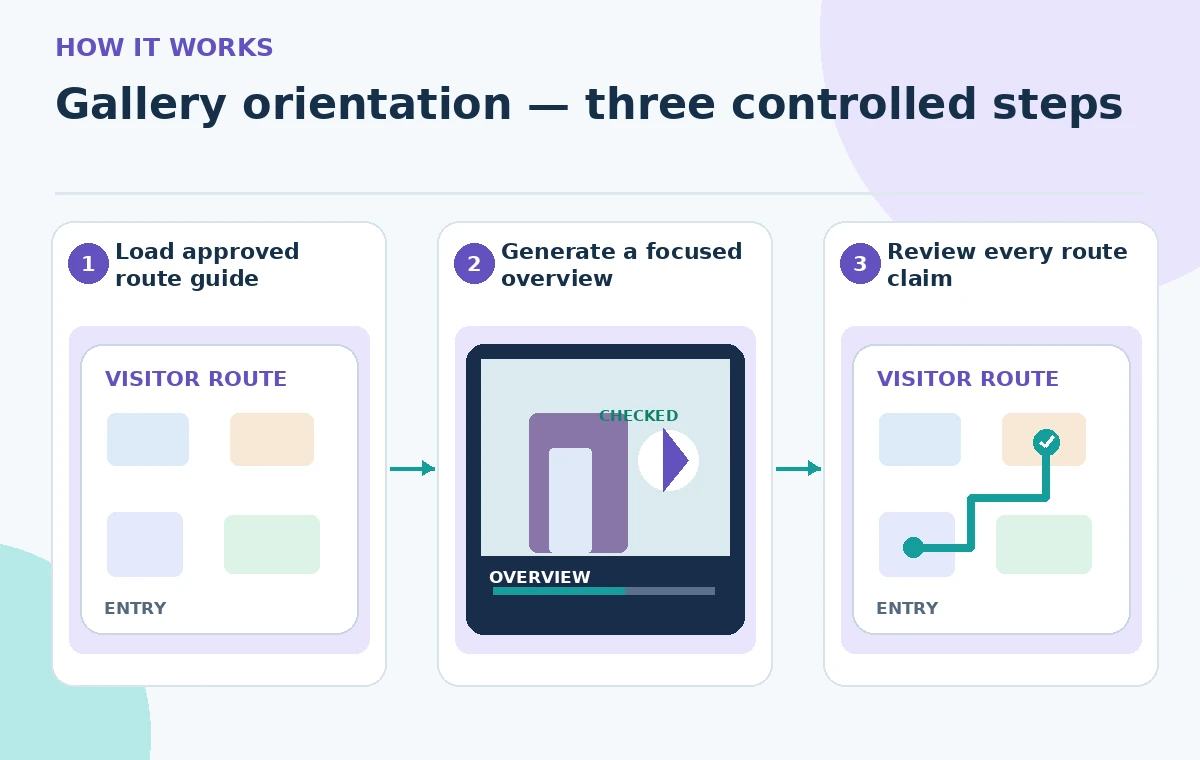
Choose the overview format and steering instructions
In the Studio panel select Video Overview, then review the available format, language, style, and customization controls. Google documents Explainer and Short formats as well as other options; availability may depend on account and age. The optional steering prompt can specify the audience and the exact focus: “Introduce the welcome desk and the verified step-free entrance; do not describe routes absent from the approved sources.” Avoid treating this as a rigid control on generation. Narration and visuals are generated and may be wrong, so a clear prompt reduces review effort but does not authorize unverified directional language. If your account offers producer-note review, check the documented subscription restriction before planning around that capability.
Map claims to source passages before rendering
Create a compact evidence table with one row for each claim allowed in the video: entrance location, elevator status, accessible restroom location, visitor help desk, and any time-limited closure. Beside each entry, note the source filename, page or section, effective date, and human reviewer. Use source language that distinguishes “the east entrance has step-free access” from the much broader “the entire gallery is step-free.” If a route has been assessed only during opening hours, preserve that condition. Do not let an AI-generated arrow or attractive building illustration function as a measured floor plan. The goal is a conceptual orientation supported by verified words, not an unofficial mobility guide.
Generate the video, then examine it shot by shot
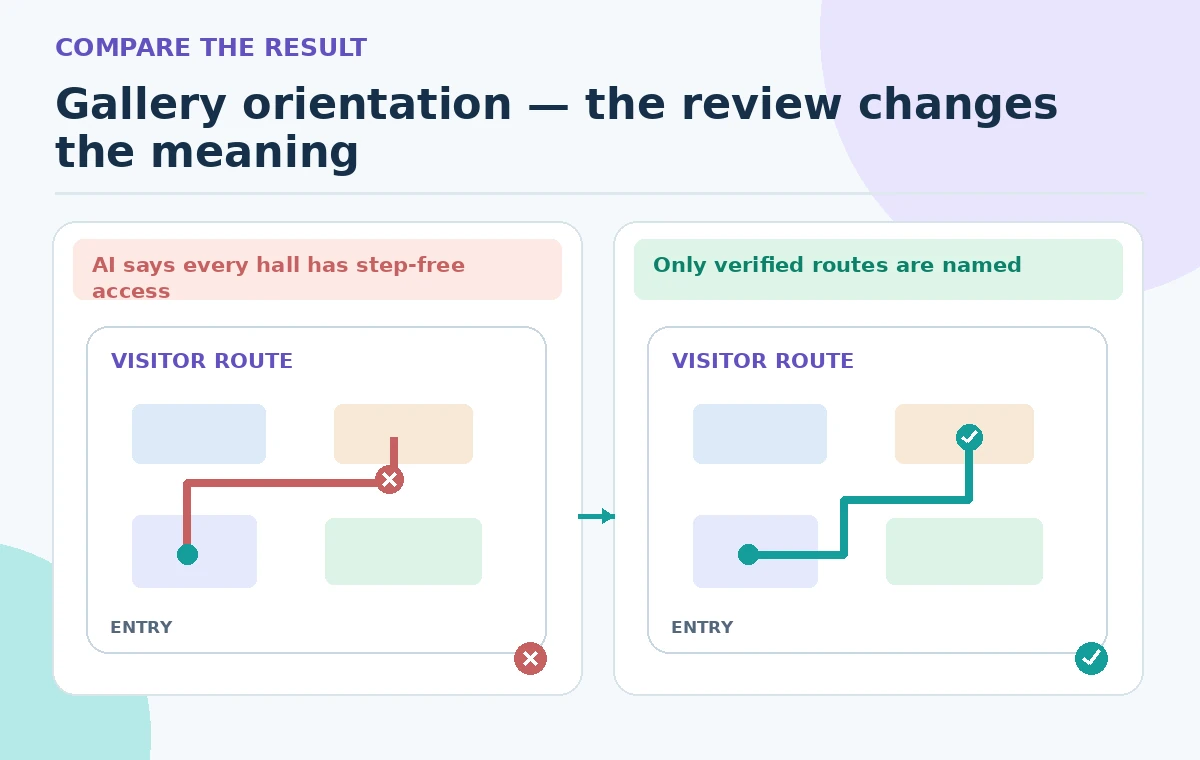
Run Video Overview using the selected sources and retrieve the finished Studio artifact. Google warns that generated voices and imagery may contain inaccuracies or audio glitches. Review every spoken direction, illustrated door, label, and room transition. Pause where a graphic implies a passage through a closed gallery or draws a corridor that the source does not show. Maintain a timecoded issue log rather than relying on a quick general impression. Re-check pronunciation of gallery names and staff titles; a plausible name or invented wing can be misleading even if the rest is polished. The accompanying illustration compares a problematic claim to a constrained, reviewed orientation and is not a real generation result.
Control misleading visuals and accessibility claims
A stylized scene can show a cheerful entry area without representing the actual building faithfully. If the model shows a ramp, directional arrow, elevator, or tactile sign, require a corresponding verified real-world source. Replace unsupported scenes with clearly generic visuals or remove them from the proposed publication. Check that contrast, narration speed, and any captions or alternate transcript are appropriate for the intended visitors; do not assume an automatically generated video satisfies accessibility standards. Provide the approved text route guide alongside the video. For orientation involving safety and mobility, human confirmation is a release requirement, not a cosmetic polishing step.
Review notebook sharing instead of sharing blindly
The Google help guide explains that sharing a Video Overview link may require viewers to have access to the full notebook, not just the video. That is a substantial privacy difference. Check all notebook sources, comments, and any linked material before opening access. Public notebook sharing availability also differs between consumer and some Workspace accounts. For an external audience, use an approved export and hosting process only when supported by the account and rights policy. Test the audience’s actual access as a separate reviewer, not merely from an owner account that can see everything. A link that exposes planning notes is not a suitable public visitor asset.
Run a release checklist with the gallery team
Ask the visitor services lead to listen to the entire draft, an accessibility coordinator to audit route statements, and an editor to check captions and visual context. Review the orientation on a phone as well as the intended lobby screen. Check whether the video remains useful with audio muted and whether urgent closures can be communicated separately in real time. Record approvals against a specific source revision and output version. If no human can verify the building information, do not release the AI video as factual guidance. Keep a short signed-off text alternative accessible even when screens fail or captions do not load.

Archive versions and define the refresh trigger
Save the approved source bundle, steering prompt, evidence table, review notes, and final exported asset in a controlled project folder. Name a person responsible for updates after door closures, signage changes, or gallery renovation. Add a visible review date to the content management record rather than claiming the video stays current automatically. If source material changes, regenerate or edit the orientation and repeat the entire route audit. This example describes a suggested workflow only: no gallery was visited, no mobility route was measured, and no generated video was watched as part of this article. The illustrations are schematic demonstrations of editorial checks.
How We Research
This article uses named first-party documentation: Google Help — Generate Video Overviews in Gemini Notebook and Google Help — Add or discover sources. We checked the described capabilities, availability notes, current feature naming, permissions, and workflow limitations, then built an independent fictional editorial scenario for verification. The example materials, images, outcomes, and approvals are conceptual, not the result of operating a customer account. We did not execute a model run, inspect private records, measure accuracy, or certify the depicted activity. Readers should confirm the latest vendor instructions and organizational permissions before applying the workflow.
Frequently Asked Questions
No. Google documents multiple formats and customization options, but what appears depends on account, age, and product rollout.
No. Generated visuals may imply routes that do not exist; audit every route statement against approved facility records.
Not necessarily. Google says video-link sharing can require access to the full notebook. Verify permissions before distribution.
No. Google documents additional subscription requirements for its co-creation and producer-note workflow.
Provide a maintained text route guide and a contact point for current accessibility information.