
An arts organizer is planning a beginner workshop and needs a small cost table for supply kits. Canva Sheets includes Magic Formulas, an AI-powered tool that writes a formula from a natural-language request. It can save the effort of remembering syntax, but selecting the wrong cells can turn a plausible formula into the wrong budget. This tutorial works through made-up quantities and prices, including a deliberately incorrect calculation. It focuses on verifying the math and the cell ranges before anyone copies the total onto a grant application or a public event page.
Create a source table with unambiguous units
Set columns for Item, Quantity, Unit Price, Estimated Line Cost and Notes. Use one row per item and label the currency in the header. For a fictional example, imagine eight craft kits at $6 each and two spare kits at $6 each. The correct combined expense is $60 before tax or shipping, which this example deliberately excludes. Do not store a precomputed grand total as another line item because summing it again would double-count the costs. If unit prices include taxes or bulk discounts, document that clearly rather than expecting Magic Formulas to infer the accounting policy.
Inspect imported numbers before asking AI
Canva Sheets accepts imported or entered spreadsheet data, but a CSV may contain text that looks numeric, blank prices, trailing currency symbols or formulas from another workbook. Verify quantities as whole numbers and price fields as numeric amounts in the selected currency. Check for duplicate item rows and hidden filters. The AI does not know whether ‘8’ refers to eight kits or an eight-pack sold as one unit unless the headers explain it. Keep a small approved price list as source evidence. If an item price is unknown, mark the estimate incomplete rather than letting the system substitute an average or a persuasive-looking number.
Generate one formula from a precise prompt
Canva’s official help instructs users to select a cell, type =, choose Magic Formulas, describe the calculation and insert the result. Ask: ‘Calculate total estimated kit cost by multiplying each quantity in B2:B3 by the matching unit price in C2:C3, then add both products; exclude shipping and tax.’ The available formula functions and interface may vary by account. Inspect the generated expression before accepting it. A reasonable option for supported tables is SUMPRODUCT over the two matching ranges; separate row multiplication followed by SUM can also be transparent. Never trust a result merely because the assistant generated valid syntax.

Catch the difference between sum and product
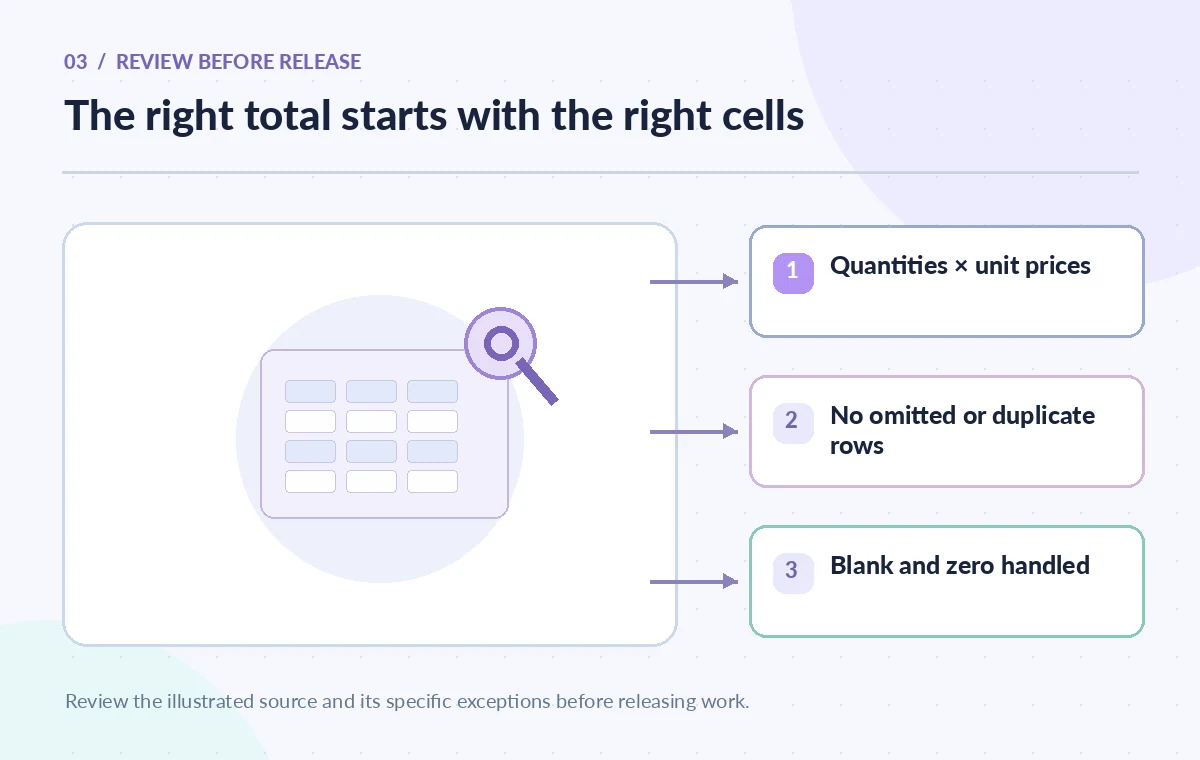
In the teaching table, summing just the unit-price column produces $12, while summing the quantities produces 10. Neither is the total estimated expense. The intended calculation multiplies 8 × 6 and 2 × 6, yielding 48 + 12 = 60. Write those two arithmetic steps on paper or in a calculator to verify the spreadsheet. Check that both ranges cover the same rows and that one formula has not shifted from B2:B3 to B3:B4. A syntax checker may accept the wrong range without warning, so logical inspection is essential even when no spreadsheet error message appears.
Test blanks, zeros and additions to the list
Add a fictional new row with zero units and a known price; it should contribute zero. Then try an item with an unknown price and decide whether the total should display a warning or remain provisional. Do not automatically treat blank price as free. If the table grows, make sure the formula range expands to include genuine new items and does not accidentally include a subtotal row. Canva documents AutoFill for applying formulas, but a formula copied to a different row can shift references. After adding a row, recompute one manual sample to check that the displayed total still tracks the source data.
Separate estimation from purchasing approval
A generated budget is not a purchase order. Before using the total, verify who can approve spending, whether prices are quotes or historical estimates, and which taxes or delivery charges are excluded. Do not round away important cents or present the fictional $60 example as a vendor quote. If a grant form asks for a total per participant, check whether the number of spare kits is included in the denominator. If receipts later arrive with different prices, reconcile actual cost to the approved budget rather than silently replacing the estimate with a new AI result. Provide a short note explaining the calculation basis.

Check formula support and usage conditions
Canva’s help page explains that Magic Formulas is a premium AI capability subject to usage limits and internet access. It generates a formula in one selected cell; broader application requires manual work or AutoFill. The suggested-fix behavior can address syntax problems but not reliably detect a logically mistaken calculation. Confirm which functions the current editor supports and what plan credits apply. If Magic Formulas is unavailable, enter a manual formula or use a plain spreadsheet. This workflow should be useful without a subscription to a particular feature, and a simple two-line calculation may be safer than AI for a tiny budget.
Make the cost sheet reviewable by someone else
Put the item list, quantity, price, formula expression and final amount in view. Keep any exception note near the affected row rather than burying it in a design comment. Ask a second volunteer to recompute at least one line item and the total without relying on the AI output. Test the sheet with quantity changes, a duplicate item and a missing price. If a chart is embedded in an event design, ensure the numbers are linked to the correct approved sheet and include the relevant currency and date. A polished graphic can multiply a spreadsheet error across every poster if the source is wrong.
Export only the reconciled version
Freeze an approved copy of the kit-cost table with the reviewer and date recorded. Check that a downloaded CSV or PDF preserves currency labels and does not reveal private supplier notes to an unintended audience. If the workbook is updated for a new workshop, clone the approved template, replace source prices with new evidence and rerun the independent calculation. Avoid putting internal production codes or audit banners on public diagrams. The scenarios in this article are educational illustrations; no Canva account was accessed and no live pricing was measured. The useful outcome is a transparent budget that a human can reproduce.
How We Research
Our research used official vendor documentation rather than an account-based demonstration: Canva Help — Use Magic Formulas; Canva — Canva Sheets overview; Canva Help — Canva AI for Sheets. We compared the published workflow, supported actions, entitlements, and limits with the steps described above. The people, entries, prices, task states and errors in this article are invented teaching examples. We did not connect a live account, perform real workflow runs, send messages, or measure AI accuracy. Each illustration is a custom instructional diagram, not a screenshot or test result. Readers should check current vendor settings, organization policy, and a human-reviewed sample before operational use.
Frequently Asked Questions
Select a cell, type = and choose Magic Formulas, then describe the calculation and inspect the generated formula.
Unit costs must be multiplied by quantities for each line, then summed. Adding only unit prices ignores the number of kits.
Not reliably. A formula can be syntactically valid but reference the wrong cells; use independent sample calculations.
No. Canva documents AI usage limits and plan-related access; verify current entitlements.
Mark the cost as incomplete and request a source price; do not assume the item is free or fabricate a value.